The simple reason that I’m on leap instead of TW is that a few years ago I did have TW as my operating system for a couple of years. About the time 15.6 came out, some programmer messed up TW booting and I couldn’t boot TW. I got on the mailing list, and one of the senior troubleshooters found the problem in a few days of troubleshooting. But he didn’t tell me how to fix it, so the information was useless to me. Rather than trying to cajole the procedure of how to fix it from an unwilling instructor, I found out that 15.6 had the updated booting. So I installed it and it worked right away. I have stayed with it since on this computer, even though TW was probably fixed a month or two after I had the problem with it not booting.
Sorry to read your bad experience.
Usually these forums are the best place for support, not the mailing lists. The “not booting” issue could no doubt have been fixed with some help here.
What I suggest now, is that you remove/disable repos #1, 4 and 5, then run
sudo zypper dup --from 3 --from 6 --allow-vendor-change
and report here.
Adding all these repos basically brings you in a kind of untested Frankenstein distro. Which makes support/help harder.
Hi Again,
thanks for the valiant effort to try to get the plasma 6 upgrade sorted out on leap 15.6. Unfortunately it didn’t provide a usable OS. I thought the best way to get out of this rabbit hole was to reinstall the OS, and I thought it best to replace 15.6 with TW. So, now we are dealing with TW as the OS.
TW picks up the video projector, and the projector displays the desktop as found on my laptop computer, but not correctly. I made some screenshots to demonstrate visually the problem to make it easy to understand.
First, my desktop & wallpaper as seen on my laptop.

This next picture is similar to what the video projector is actually projecting.
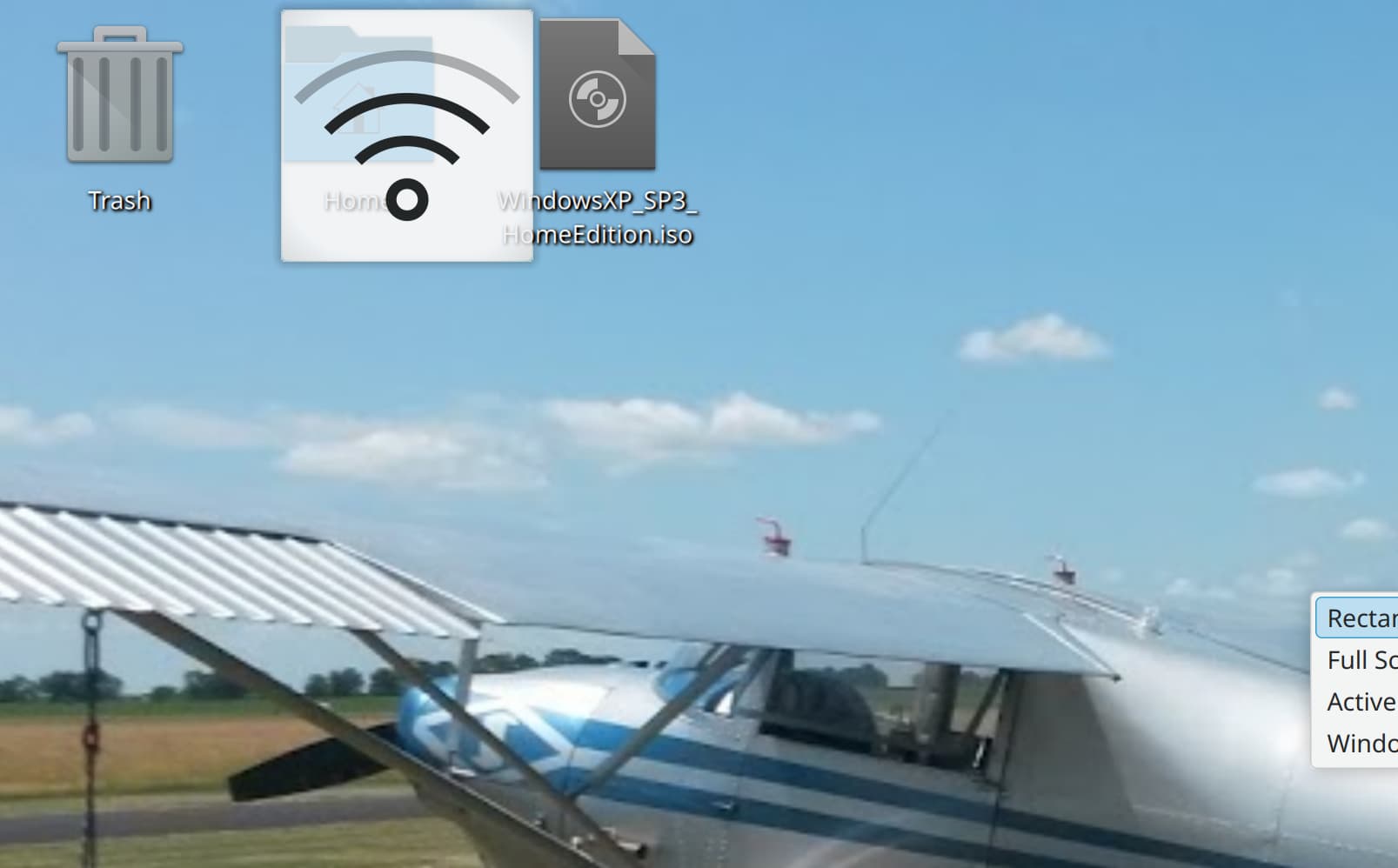
I think that the proper way to express this is that the scaling is not correct, but if my terminology is incorrect you can see what I’m referring to. I tried to use different scales as presented in Settings>Display and Monitor for the HDMI device, which the OS now picks up and presents in Settings. But they didn’t have much effect, and didn’t resolve the issue.
Thanks for sticking in on this problem to everyone who is trying to help resolve it!
By the way, how do I get rid of the big white and black network icon that is sitting overtop of the desktop icons on the top left of the desktop?
Mark
Ok, so is this a Plasma X11 or Plasma Wayland session?
echo $XDG_SESSION_TYPE
This will let us know display mode and scaling for the projector:
kscreen-doctor -o
Right-click on the desktop and select “Enter Edit Mode”, hover the cursor over the unwanted wireless widget, and remove it.
Ok that output confirms projector output is not scaled. You need to adjust that. Plasma Wayland scaling is superior to that offered within the X11 environment as already mentioned.
When posting commands and short output, post as preformatted text (</> button in forum editor). It should look more like this:
echo $XDG_SESSION_TYPE

x11
I’m not clear on the goal here. Is the object for the projection screen to display the entirety of the laptop display? Or, just the content of a rectangle (window?) that produces a presentation?
Yes, a “cloned” display (same as laptop) - unified outputs in plasma settings.
I’d be looking at the Projector specs and Projector menu system to ensure things match up screen wise, also maybe an EDID issue if it’s an older model and low resolution…
I had previously mentioned that the scale settings to match the two outputs weren’t available in what turned out to be the plasma session. I haven’t been able to find a means to match the scales of the two screens. So when I booted up this evening after reading post 46, I switched to boot into a Wayland session. With that I was able to get the two screens to display perfectly mirrored without having to configure anything, right out of the box.
The purpose of getting the screens to match when using the video projector is that I will use the video projector when I have speaking engagements. I use LibreOffice Impress slide presentations. When I open the Impress presentation in Plasma X session, the slide presentation presents one slide at a time. As I have just found out, when I open the presentation in Wayland, the slides present two at a time, the slide I opened as a larger slide, side by side with a smaller presentation of the next slide. Is this something that is a by product of the Wayland software? I haven’t made any adjustments in opening the presentation, and can’t find any settings that would have caused the change in rendering in Impress.
One more little strange clue. After I disconnected the video projector, I reopened the Impress presentation. Now it opens and presents normally, one slide at a time. The slide presents full screen, without being reduced in size to allow the slide to follow being presented even smaller, side by side, on both mirrored screens.
Good - that part sorted now.
I’ve done some screenshots to show what is happening with LibreOffice Impress displays with the video projector. Here is what it should present on both screens using the Wayland session.
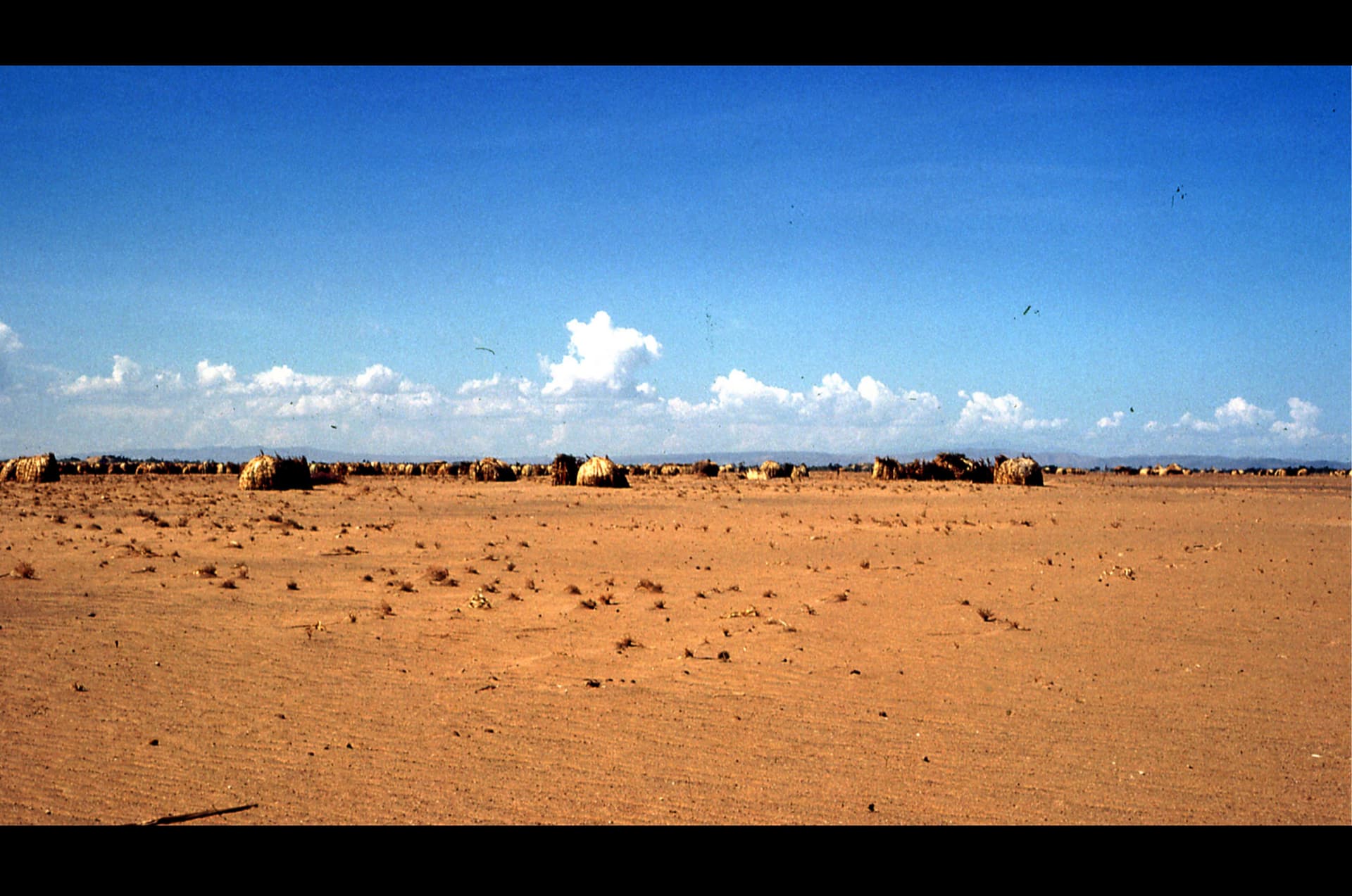
When I unplug the hdmi cable from the laptop to the video projector, the slide image reverts to the single slide full screen image one normally expects when running an Impress slide show.
Here is what it is actually presenting on the both screens when I try to run an Impress slide show. It has the selected slide, and the next one to follow.
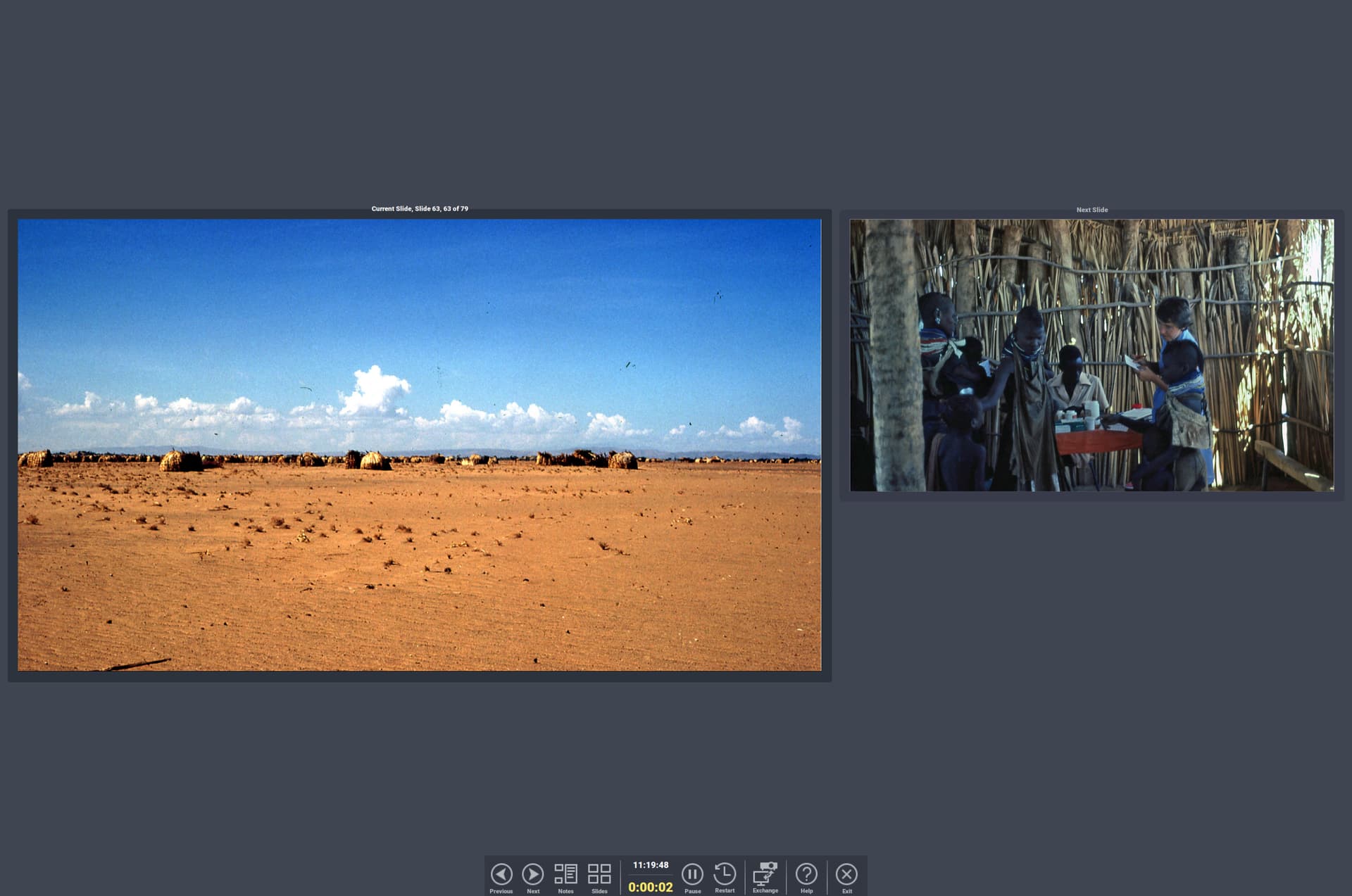
Here is a screenshot of the settings for primary and secondary screen. The drop down list of settings don’t contain enough settings to match the setting values for both screens.
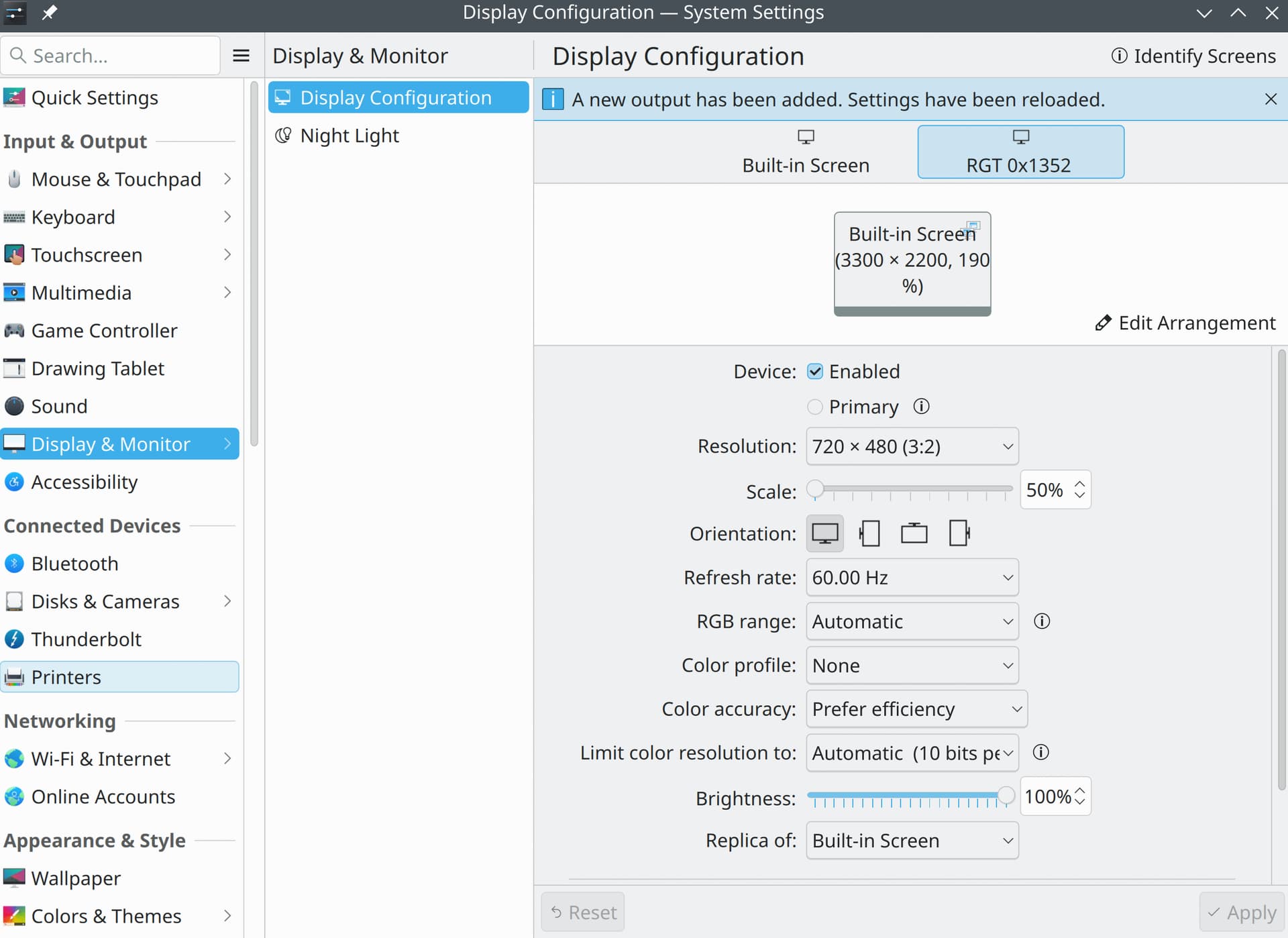
I just switched back to the Plasma X11 session, and it projects exactly the same as what I have detailed in the Wayland session in my previous post.
Better stay on Wayland, and check this:
- Click the triangle in the system tray
- You’ll see the various optiona, select and keep what you need.
That’s because you have the projector display configured as a replica of the built-in display. Instead, you need to configure the projector display to be a second screen to the right/left of the laptop display ie extended desktop.
Once that is done, navigate LO Impress > Slide Show > Slide Show Settings, and select the “Presentation Display” as required, and “Presenter console” as “Full Screen”. When you start the slide show, it should now work to display the active slide on the projector screen, and you should see the active and next slide only on the laptop display as expected.
2 Likes
Thanks for clarifying how to configure the screens. It works now. I was expecting how this would present in Powerpoint or Impress in Windows, with the one slide displayed full screen cloned on both the laptop and video projector. That’s also what was presented to me as the expected result earlier in the thread. But the explanation makes it work in opensuse in an unexpected fashion. Victory at last!
1 Like
Well initially I understood that you just wanted both displays unified - and you seemed to have a number of issues with getting that working. Your previous post made it clearer with what you were now observing. “Presenter Mode” required two distinct displays (extended desktop) as you now understand. 
If you just wanted to have two displays unified, then you’d want to disable the “Presenter console” in Impress so that both laptop screen and projector show just the single “active” slide.