This is a continuation of my thread relating to glitchy windows & KDE Discover problems. At this point the problems posed by the original thread had been solved, and then became more related to installing software from https://asus-linux.org/, a community project to replicate the customization of ROG software exclusive to Windows on Linux.
Anyone on OpenSUSE Tumbleweed that is following the Tumbleweed Guide will eventually hit a wall at the section, “Asus-Linux Software”. You can read my process going through the guide in the aforementioned thread, starting at the 9th post. While you can add the repository, said repository is empty, @hui pointing out that the project, at least for OpenSUSE Tumbleweed, is likely abandoned. This leaves ROG Notebook/Laptop users like me with a few options:
- Just use your new OS as is. Perhaps hoping someone else can pick up the project again for Tumbleweed users.
- As suggested by the General Distro Install guide on the site, use Distrobox, figuring out how to use it, and trying to get ascutl & supergfxctl installed through there.
- As also suggested by the General Distro Install guide on the site, build ascutl & supergfxctl from source. Likely the most complex option, especially for someone new to Linux like me.
- Suggested by @OrsoBruno, install Switcheroo Control. [Link to Post Referencing This]
- Also suggested by @OrsoBruno, the OSS repository seems to still have ascutl & supergfxctl, following this link. [Referenced in the same post as Switcheroo Control]
Hopefully this new post with a more related title can make it easier for OpenSUSE ROG users to find help. As for me, I think I am leaning towards solutions #4 or #5, but I need to think about it a bit.
Please make some effort, and don’t come with titles with “Or something similar”.
Noted, title’s like mine can be vague in terms of the scope of the topic. I’ll try to make more specified titles in the future since I can no longer edit this one.
DM me what you want the title to be, I can edit it for you
And, BTW, the correct name of the package is asusctl and it is not in the OSS repo.
My bad, I misread your post, and have been mispronouncing/misspelling asusctl for a long time. I think I’ll try method #5, since there are still some features I want to have that is outside graphics switching. That being said, you mentioned supergfxctl is still on the OSS repository. I’m still fairly new to linux so do I just do
zypper in supergfxctl
to install supergfxctl?
Yes. You may also need supergfxctl-plasmoid if you are using KDE.
Disclaimer: I didn’t try those packages.
Alright so I installed both asusctl, supergfxctl, supergfxctl-plasmoid, and ROG Control Center from the guide. Here are my results:
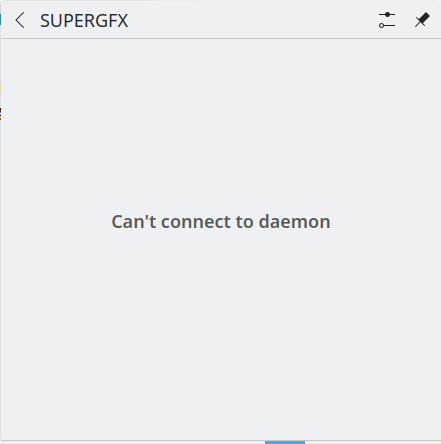
After restarting I see the SuperGFX app on the bottom right, but when I click on it I get shown this:
I do not know what can’t connect to daemon means, I am thinking it is relating to one of the steps when installing asusctl, checking if power-profiles-daemon is running. However running the command shown did not produce anything different.
I also never seemed to have suse-prime installed on my system, though I did not do this step until after I install supergfxctl, I completely missed it on accident.
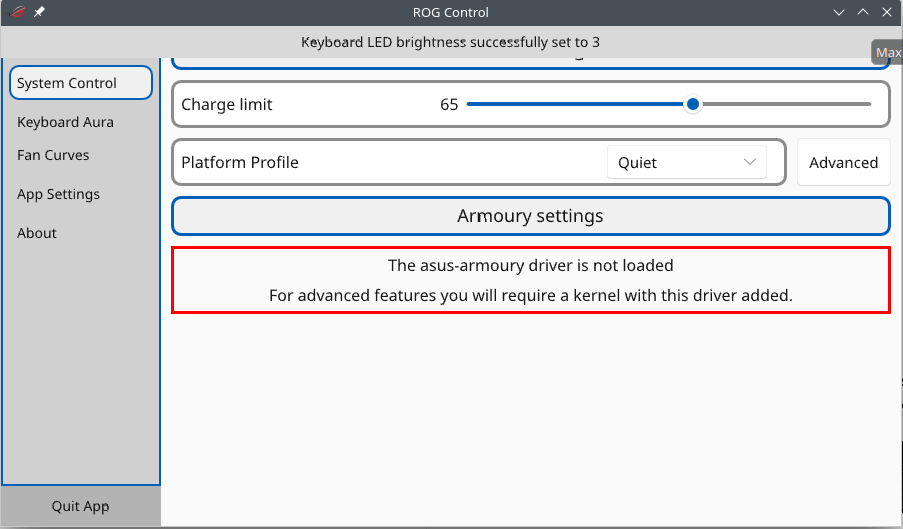
ROG Control Center is working, ok. In the “System Control” section it states, “The asus-armoury driver is not loaded. For advanced features you will a require a kernal with this driver added.”
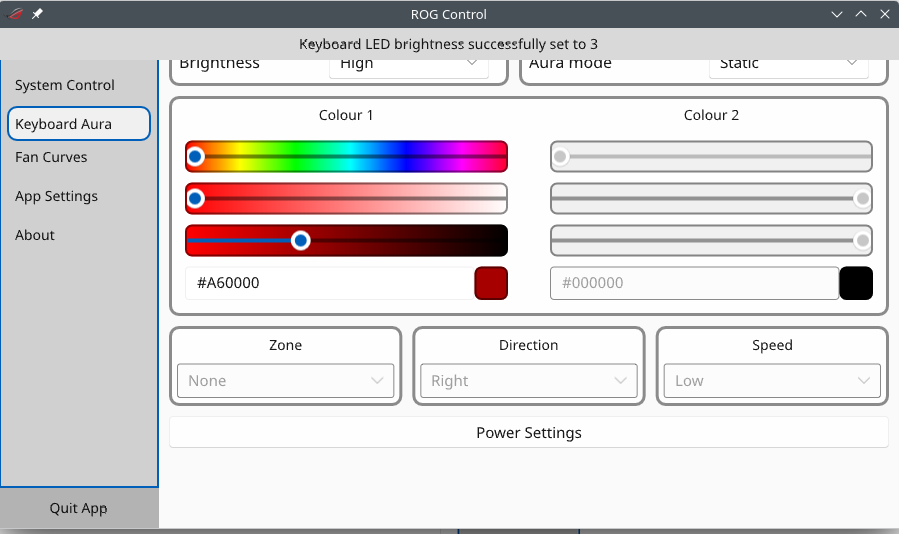
Also as seen on the screenshot above, there seems to be a graphical error regarding the top of each page’s settings being cut off a bit. This can range from negligible, as the only information above the charge limit is just stating the category of settings these options are in, to a bit annoying, as in the case where in “Keyboard Aura”, Keyboard Brightness and Aura Mode are slightly cut off. There is no scroll bar, and resizing the window does not change anything.
At the very least it seems that the settings are working. “Charge Limit” seems to be working fine, so is the “Brightness” & “Aura Mode”, though I do not think my keyboard light can even change color at all. Then again I never touched keyboard brightness and just turned it off all the time, even on windows.
Have you performed the following step?
sudo systemctl enable --now supergfxd
Tried running the command (sudo systemctl enable --now supergfxd), nothing seemed to change, still have that message. Should the terminal have outputted something when I ran the command? When I ran it nothing was outputted as a result.
Do:
sudo systemctl status supergfxd
Here is my output. Said output appears to have duplicated itself? I do not know if that is normal:
● supergfxd.service - SUPERGFX
     Loaded: loaded (/usr/lib/systemd/system/supergfxd.service; enabled; preset: enabled)
     Active: active (running) since Tue 2025-08-26 21:15:47 PDT; 32min ago
 Invocation: 72a31bfc470a4e0c98f362ec230c4b1a
   Main PID: 1411 (supergfxd)
      Tasks: 17 (limit: 47146)
        CPU: 2.562s
     CGroup: /system.slice/supergfxd.service
             └─1411 /usr/bin/supergfxd

Aug 26 21:15:50 localhost.localdomain supergfxd[1411]: [ERROR supergfxctl::controller] Action thread errored: Modprobe error: modpr>
Aug 26 21:15:51 localhost.localdomain systemctl[1825]: Job for nvidia-persistenced.service failed because the control process exite>
Aug 26 21:15:51 localhost.localdomain systemctl[1825]: See "systemctl status nvidia-persistenced.service" and "journalctl -xeu nvid>
Aug 26 21:15:51 localhost.localdomain supergfxd[1411]: [WARN  supergfxctl] true nvidia-persistenced.service failed: Some(1)
Aug 26 21:15:51 localhost.localdomain supergfxd[1411]: [DEBUG supergfxctl] Did CommandArgs { inner: ["start", "nvidia-persistenced.>
Aug 26 21:15:51 localhost.localdomain supergfxd[1411]: [DEBUG supergfxctl] Did CommandArgs { inner: ["start", "nvidia-powerd.servic>
Aug 26 21:15:51 localhost.localdomain supergfxd[1411]: [DEBUG supergfxctl::pci_device] set_runtime_pm: pm = Auto, [Device { dev_pat>
Aug 26 21:15:51 localhost.localdomain supergfxd[1411]: [INFO  supergfxctl::pci_device] set_runtime_pm: Set PM on "/sys/devices/pci0>
Aug 26 21:15:51 localhost.localdomain supergfxd[1411]: [INFO  supergfxctl::pci_device] set_runtime_pm: Set PM on "/sys/devices/pci0>
Aug 26 21:15:51 localhost.localdomain supergfxd[1411]: [INFO  supergfxctl::controller] reload: Reloaded gfx mode: Hybrid
lines 1-20/20 (END)...skipping...
● supergfxd.service - SUPERGFX
     Loaded: loaded (/usr/lib/systemd/system/supergfxd.service; enabled; preset: enabled)
     Active: active (running) since Tue 2025-08-26 21:15:47 PDT; 32min ago
 Invocation: 72a31bfc470a4e0c98f362ec230c4b1a
   Main PID: 1411 (supergfxd)
      Tasks: 17 (limit: 47146)
        CPU: 2.562s
     CGroup: /system.slice/supergfxd.service
             └─1411 /usr/bin/supergfxd

Aug 26 21:15:50 localhost.localdomain supergfxd[1411]: [ERROR supergfxctl::controller] Action thread errored: Modprobe error: modprobe nvidia_drm failed: "modprobe: ERROR: could not insert 'nvidia_drm': Key was rejected by service\n"
Aug 26 21:15:51 localhost.localdomain systemctl[1825]: Job for nvidia-persistenced.service failed because the control process exited with error code.
Aug 26 21:15:51 localhost.localdomain systemctl[1825]: See "systemctl status nvidia-persistenced.service" and "journalctl -xeu nvidia-persistenced.service" for details.
Aug 26 21:15:51 localhost.localdomain supergfxd[1411]: [WARN  supergfxctl] true nvidia-persistenced.service failed: Some(1)
Aug 26 21:15:51 localhost.localdomain supergfxd[1411]: [DEBUG supergfxctl] Did CommandArgs { inner: ["start", "nvidia-persistenced.service"] }
Aug 26 21:15:51 localhost.localdomain supergfxd[1411]: [DEBUG supergfxctl] Did CommandArgs { inner: ["start", "nvidia-powerd.service"] }
Aug 26 21:15:51 localhost.localdomain supergfxd[1411]: [DEBUG supergfxctl::pci_device] set_runtime_pm: pm = Auto, [Device { dev_path: "/sys/devices/pci0000:00/0000:00:01.1/0000:01:00.0", hotplug_path: Some("/sys/bus/pci/slots/0/power"), vendor: Nvidia, is_dgpu: true, n>
Aug 26 21:15:51 localhost.localdomain supergfxd[1411]: [INFO  supergfxctl::pci_device] set_runtime_pm: Set PM on "/sys/devices/pci0000:00/0000:00:01.1/0000:01:00.0" to Auto
Aug 26 21:15:51 localhost.localdomain supergfxd[1411]: [INFO  supergfxctl::pci_device] set_runtime_pm: Set PM on "/sys/devices/pci0000:00/0000:00:01.1/0000:01:00.1" to Auto
Aug 26 21:15:51 localhost.localdomain supergfxd[1411]: [INFO  supergfxctl::controller] reload: Reloaded gfx mode: Hybrid
Please open a terminal, gain superuser power by su - then issue systemctl status nvidia-persistencedand post the result here (including the command, the result and the trailing prompt so we can see clearly what you have done and the complete output).
Also post zypper se -si nvidia (you may not have installed everything needed for the Nvidia GPU to work properly).
Here are the results from doing both systemctl status nvidia-persistenced & zypper se -si nvidia after gaining superuser power:
localhost:~ # systemctl status nvidia-persistenced
× nvidia-persistenced.service - NVIDIA Persistence Daemon
     Loaded: loaded (/usr/lib/systemd/system/nvidia-persistenced.service; enabled; preset: enabled)
     Active: failed (Result: exit-code) since Wed 2025-08-27 09:59:48 PDT; 1h 17min ago
 Invocation: c70b34c1cf4e46758537df5a4d3af540
    Process: 1840 ExecStart=/usr/bin/nvidia-persistenced --verbose (code=exited, status=1/FAILURE)

Aug 27 09:59:48 localhost.localdomain systemd[1]: nvidia-persistenced.service: Scheduled restart job, restart counter is at 5.
Aug 27 09:59:48 localhost.localdomain systemd[1]: nvidia-persistenced.service: Start request repeated too quickly.
Aug 27 09:59:48 localhost.localdomain systemd[1]: nvidia-persistenced.service: Failed with result 'exit-code'.
Aug 27 09:59:48 localhost.localdomain systemd[1]: Failed to start NVIDIA Persistence Daemon.
localhost:~ # zypper se -si nvidia
Loading repository data...
Reading installed packages...

S  | Name                          | Type    | Version                  | Arch   | Repository
---+-------------------------------+---------+--------------------------+--------+----------------------
i  | kernel-firmware-nvidia        | package | 20250516-4.1             | noarch | Main Repository (OSS)
i  | kernel-firmware-nvidia        | package | 20250516-4.1             | noarch | repo-oss
i  | libnvidia-egl-gbm1            | package | 1.1.2-7.14               | x86_64 | NVIDIA
i  | libnvidia-egl-gbm1            | package | 1.1.2-7.14               | x86_64 | repo-non-free
i  | libnvidia-egl-wayland1        | package | 1.1.20-51.1              | x86_64 | NVIDIA
i  | libnvidia-egl-wayland1        | package | 1.1.20-51.1              | x86_64 | repo-non-free
i  | libnvidia-egl-x111            | package | 1.0.3-21.1               | x86_64 | NVIDIA
i  | libnvidia-egl-x111            | package | 1.0.3-21.1               | x86_64 | repo-non-free
i  | libnvidia-gpucomp             | package | 580.76.05-39.1           | x86_64 | NVIDIA
i  | libnvidia-gpucomp             | package | 580.76.05-39.1           | x86_64 | repo-non-free
i  | nvidia-common-G06             | package | 580.76.05-39.1           | x86_64 | NVIDIA
i  | nvidia-common-G06             | package | 580.76.05-39.1           | x86_64 | repo-non-free
i  | nvidia-compute-G06            | package | 580.76.05-39.1           | x86_64 | NVIDIA
i  | nvidia-compute-G06            | package | 580.76.05-39.1           | x86_64 | repo-non-free
i  | nvidia-compute-utils-G06      | package | 580.76.05-39.1           | x86_64 | NVIDIA
i  | nvidia-compute-utils-G06      | package | 580.76.05-39.1           | x86_64 | repo-non-free
i+ | nvidia-driver-G06-kmp-default | package | 580.76.05_k6.15.8_1-39.1 | x86_64 | NVIDIA
i+ | nvidia-driver-G06-kmp-default | package | 580.76.05_k6.15.8_1-39.1 | x86_64 | repo-non-free
i  | nvidia-gl-G06                 | package | 580.76.05-39.1           | x86_64 | NVIDIA
i  | nvidia-gl-G06                 | package | 580.76.05-39.1           | x86_64 | repo-non-free
i  | nvidia-modprobe               | package | 580.76.05-17.1           | x86_64 | NVIDIA
i  | nvidia-modprobe               | package | 580.76.05-17.1           | x86_64 | repo-non-free
i  | nvidia-persistenced           | package | 580.76.05-2.1            | x86_64 | NVIDIA
i  | nvidia-persistenced           | package | 580.76.05-2.1            | x86_64 | repo-non-free
i  | nvidia-userspace-meta-G06     | package | 580.76.05-11.1           | noarch | NVIDIA
i  | nvidia-userspace-meta-G06     | package | 580.76.05-11.1           | noarch | NVIDIA
i  | nvidia-userspace-meta-G06     | package | 580.76.05-11.1           | noarch | repo-non-free
i  | nvidia-userspace-meta-G06     | package | 580.76.05-11.1           | noarch | repo-non-free
i  | nvidia-video-G06              | package | 580.76.05-39.1           | x86_64 | NVIDIA
i  | nvidia-video-G06              | package | 580.76.05-39.1           | x86_64 | repo-non-free
i  | openSUSE-repos-MicroOS-NVIDIA | package | 20250728.9adc675-1.1     | x86_64 | Main Repository (OSS)
i  | openSUSE-repos-MicroOS-NVIDIA | package | 20250728.9adc675-1.1     | x86_64 | repo-oss
localhost:~ #
This is the problem. Not clear to me why that happens.
You may try dracut -f --regenerate-all and reboot (it does no harm to regenerate the initrd).
If it doesn’t work, more info is likely in:
lsmod |grep nvidia
inxi -GSaz --za
As always, please post the command, result, trailing prompt.
Ok so here is what I did:
I did sudo dracut -f --regenerate-all. This did not output anything, so just to make sure I did it again, this time after gaining super user status through su -. I rebooted and nothing changed, supergfx still shows that I cannot connect to daemon.
So, I did lsmod |grep nvidia & inxi -GSaz --za
[Username]@localhost:~> lsmod |grep nvidia
[Username]@localhost:~> inxi -GSaz --za
System:
  Kernel: 6.16.1-1-default arch: x86_64 bits: 64 compiler: gcc v: 15.1.1
    clocksource: hpet avail: acpi_pm
    parameters: BOOT_IMAGE=/boot/vmlinuz-6.16.1-1-default root=UUID=<filter>
    splash=silent mitigations=auto quiet security=selinux selinux=1
    rd.driver.blacklist=nouveau
  Desktop: KDE Plasma v: 6.4.4 tk: Qt v: N/A info: frameworks v: 6.17.0
    wm: kwin_x11 tools: avail: xscreensaver vt: 2 dm: SDDM Distro: openSUSE
    Tumbleweed 20250825
Graphics:
  Device-1: NVIDIA GA106M [GeForce RTX 3060 Mobile / Max-Q] vendor: ASUSTeK
    driver: N/A alternate: nouveau, nvidia_drm, nvidia non-free: 550/565.xx+
    status: current (as of 2025-01; EOL~2026-12-xx) arch: Ampere code: GAxxx
    process: TSMC n7 (7nm) built: 2020-2023 pcie: gen: 3 speed: 8 GT/s
    lanes: 8 link-max: gen: 4 speed: 16 GT/s lanes: 16 bus-ID: 01:00.0
    chip-ID: 10de:2520 class-ID: 0300
  Device-2: Advanced Micro Devices [AMD/ATI] Cezanne [Radeon Vega Series /
    Radeon Mobile Series] vendor: ASUSTeK driver: amdgpu v: kernel arch: GCN-5
    code: Vega process: GF 14nm built: 2017-20 pcie: gen: 3 speed: 8 GT/s
    lanes: 16 ports: active: eDP-1 empty: HDMI-A-1 bus-ID: 04:00.0
    chip-ID: 1002:1638 class-ID: 0300 temp: 48.0 C
  Display: x11 server: X.Org v: 21.1.15 with: Xwayland v: 24.1.8
    compositor: kwin_x11 driver: X: loaded: modesetting unloaded: vesa
    alternate: fbdev dri: radeonsi gpu: amdgpu display-ID: :0 screens: 1
  Screen-1: 0 s-res: 1920x1080 s-dpi: 96 s-size: 508x285mm (20.00x11.22")
    s-diag: 582mm (22.93")
  Monitor-1: eDP-1 model: Najing CEC Panda 0x005e built: 2020 res:
    mode: 1920x1080 hz: 144 scale: 100% (1) dpi: 158 gamma: 1.2
    size: 309x174mm (12.17x6.85") diag: 355mm (14") ratio: 16:9 modes:
    max: 1920x1080 min: 640x480
  API: EGL v: 1.5 hw: drv: amd radeonsi platforms: device: 0 drv: radeonsi
    device: 1 drv: swrast gbm: drv: kms_swrast surfaceless: drv: radeonsi x11:
    drv: radeonsi inactive: wayland
  API: OpenGL v: 4.6 compat-v: 4.5 vendor: amd mesa v: 25.1.7 glx-v: 1.4
    direct-render: yes renderer: AMD Radeon Graphics (radeonsi renoir ACO DRM
    3.64 6.16.1-1-default) device-ID: 1002:1638 memory: 500 MiB unified: no
  API: Vulkan v: 1.4.321 layers: 3 device: 0 type: integrated-gpu name: AMD
    Radeon Graphics (RADV RENOIR) driver: N/A device-ID: 1002:1638
    surfaces: N/A device: 1 type: cpu name: llvmpipe (LLVM 20.1.8 256 bits)
    driver: N/A device-ID: 10005:0000 surfaces: N/A
  Info: Tools: api: clinfo, eglinfo, glxinfo, vulkaninfo
    de: kscreen-console,kscreen-doctor gpu: nvidia-smi wl: wayland-info
    x11: xdpyinfo, xprop, xrandr
[Username] is just a stand in for the actual name of my user.
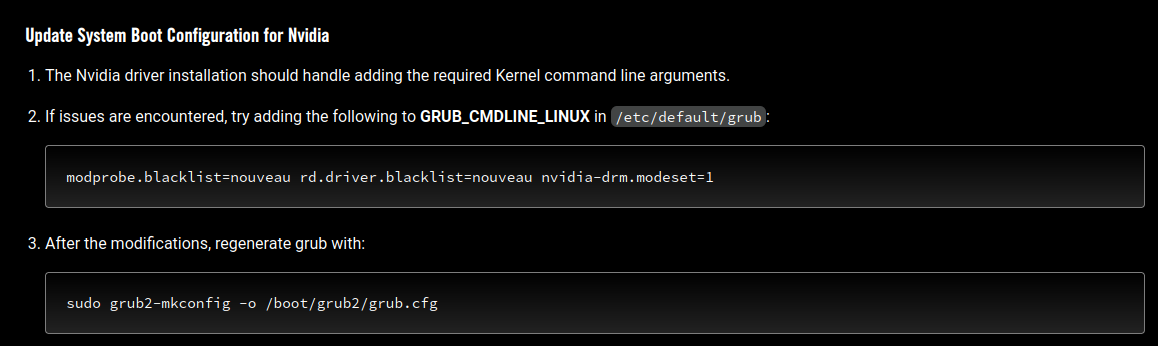
As another note, something that I neglected to do when following the Asus-Linux Guide was permanently add modprobe.blacklist=nouveau, since this was before I knew how to actually change the grub. I also don’t think I ever Updated System Boot Configuration as the guide describes below:
I can only think of one other issue relating to some error codes during boot that keep showing up, but they were there before the nvidia driver installation and do not seem to clear affect my system in a way, so I was gonna make another thread to discuss that. If it helps I could post the picture of what the error codes are.
Nvidia drivers are not loaded, despite apparently being successfully installed?
For instance check:
sudo modinfo nvidia_drm
Do you have secureboot enabled?
sudo mokutil --sb-state
If secureboot is enabled, did you see a blue screen on first reboot and did you enroll the new keys?
sudo mokutil --list-new
Does modprobe nvidia (as superuser) spit any errors?
The boot command line already has rd.driver.blacklist=nouveauwhich is equivalent.
But adding nvidia-drm.modeset=1 might help.
For the questions regarding secureboot, yes, I enabled and I yes I did see a bluescreen. I don’t remember if it happened on first reboot but I did see it during one of my reboots. I do not recall having to enroll new keys. Here are the results for all the commands you listed.
sudo modinfo nvidia_drm
[sudo] password for root:
filename:       /usr/lib/modules/6.16.1-1-default/updates/nvidia-drm.ko
version:        580.76.05
supported:      external
license:        MIT
suserelease:    openSUSE Tumbleweed
srcversion:     AA78D6CEE38C58B9C047B45
alias:          pci:v000010DEd*sv*sd*bc06sc80i00*
alias:          pci:v000010DEd*sv*sd*bc03sc02i00*
alias:          pci:v000010DEd*sv*sd*bc03sc00i00*
depends:        nvidia-modeset,drm_ttm_helper,nvidia
name:           nvidia_drm
retpoline:      Y
vermagic:       6.16.1-1-default SMP preempt mod_unload modversions
sig_id:         PKCS#7
signer:         Local build for nvidia-driver-G06 580.76.05 on 2025-08-25
sig_key:        47:F1:61:63:AB:DE:91:16:C0:DF:95:B6:3F:78:91:CE:4F:77:22:A1
sig_hashalgo:   sha256
signature:      20:F1:AE:77:29:85:E5:87:5C:9E:FB:A5:54:5B:B1:F5:B1:C6:38:15:
                49:CF:DC:4E:35:56:A2:05:50:43:52:DF:0C:DB:3F:8E:5A:F2:8E:84:
                CE:5D:E7:FE:34:2E:93:EC:F1:F8:B9:AD:2E:4E:99:11:B5:AB:C5:E5:
                B4:F6:D0:B8:BA:07:E5:AA:EA:02:4B:D8:2C:DC:65:44:3B:BB:93:A5:
                AC:75:1D:05:52:EA:99:5E:89:6F:37:2B:E1:8A:86:6D:7C:53:38:23:
                6C:AB:14:98:0B:C8:3A:BE:EB:97:8F:48:B7:15:E9:F8:91:8D:1B:B8:
                93:FF:41:AC:38:E4:8E:95:47:FC:C7:0A:72:D0:F1:80:21:62:0A:B6:
                36:F4:DF:5A:35:0B:DB:A0:C8:54:A2:D7:5E:3D:4E:3A:B3:11:98:91:
                0F:76:E6:78:FD:D9:FA:E5:DE:B0:1F:8B:75:C9:15:96:E8:13:85:D2:
                E4:BF:01:76:02:0C:B1:6A:55:A5:70:8D:13:5B:9B:36:FC:E1:5F:5D:
                3A:A0:F5:C8:C1:4F:51:50:22:F3:E3:10:DD:3B:08:D1:94:86:B0:E7:
                7B:18:E1:A4:2F:47:A7:13:4B:73:06:9D:6E:9A:69:29:7D:2E:A0:CA:
                A8:36:EB:88:5B:37:85:63:E5:CD:42:90:A4:1F:5E:21
parm:           modeset:Enable atomic kernel modesetting (1 = enable, 0 = disable (default)) (bool)
parm:           fbdev:Create a framebuffer device (1 = enable (default), 0 = disable) (bool)
sudo mokutil --sb-state
SecureBoot enabled
Nothing was outputted when I did sudo mokutil --list-new
[Username}@localhost:~> sudo mokutil --list-new
[Username}@localhost:~>
modprobe nvidia (as superuser) did spit out one error.
localhost:~ # modprobe nvidia
modprobe: ERROR: could not insert 'nvidia': Key was rejected by service
Can you (temporarily) disable secureboot and try again?
How would I do that temporarily?