Well, enter the firmware (AKA BIOS) setup and disable. Then you can enable again on next boot if we find something interesting.
I do not know if I can even do that, the only thing I can control is Secure Boot Control.

I disabled Secure Boot Control anyway and ran the commands again.
sudo modinfo nvidia_drm
filename:       /usr/lib/modules/6.16.3-1-default/updates/nvidia-drm.ko
version:        580.76.05
supported:      external
license:        MIT
suserelease:    openSUSE Tumbleweed
srcversion:     AA78D6CEE38C58B9C047B45
alias:          pci:v000010DEd*sv*sd*bc06sc80i00*
alias:          pci:v000010DEd*sv*sd*bc03sc02i00*
alias:          pci:v000010DEd*sv*sd*bc03sc00i00*
depends:        nvidia-modeset,drm_ttm_helper,nvidia
name:           nvidia_drm
retpoline:      Y
vermagic:       6.16.3-1-default SMP preempt mod_unload modversions
sig_id:         PKCS#7
signer:         Local build for nvidia-driver-G06 580.76.05 on 2025-08-27
sig_key:        23:A3:8D:F6:14:8E:1D:77:07:45:F1:AD:6F:62:FE:71:68:3A:C4:53
sig_hashalgo:   sha256
signature:      31:8C:DA:AE:D4:76:BA:A7:33:E8:E0:9E:CB:EC:AF:A6:08:36:A4:0D:
                91:C6:D3:56:AD:3C:24:48:59:42:32:78:36:9E:FC:88:86:43:93:5B:
                76:8D:8B:9A:8B:2A:16:56:70:A0:C8:42:A3:F7:12:5F:11:CE:A2:35:
                38:1D:B4:31:7D:93:37:D5:21:59:09:49:24:B4:92:08:2E:3C:77:7D:
                F5:13:A3:E5:50:6B:41:FD:F6:B7:27:EA:25:CD:AB:AB:38:9C:3D:40:
                23:13:AA:40:88:EF:15:F6:FD:B0:DF:9D:B5:CA:24:F4:DD:C3:D5:20:
                39:3B:9C:D9:69:B6:2A:BB:58:36:43:62:96:3C:1F:0B:30:93:C7:7B:
                78:12:0F:70:30:5C:B6:A9:F6:A9:B9:5B:14:06:93:9F:F3:A5:57:65:
                FF:3B:87:14:01:D1:61:78:6F:64:20:83:50:F0:19:CB:42:80:A1:D1:
                6B:38:9D:53:7A:31:57:25:EB:F1:17:04:5D:48:5C:E1:0E:0E:0F:A4:
                CB:96:8B:A5:C1:7B:22:74:A7:3C:8F:1B:53:7E:B7:70:A6:B0:20:9A:
                B0:A6:6D:B3:68:C6:21:24:84:F0:D3:EB:89:97:10:FB:6E:EA:0F:DF:
                6A:94:8F:B6:FB:BB:E6:BE:66:F0:08:47:39:5C:13:10
parm:           modeset:Enable atomic kernel modesetting (1 = enable, 0 = disable (default)) (bool)
parm:           fbdev:Create a framebuffer device (1 = enable (default), 0 = disable) (bool)
sudo mokutil --sb-state
SecureBoot enabledSecureBoot disabled
sudo mokutil --list-new
[Nothing Outputted]
modprobe nvidia
[Nothing Outptted]
At my first glance, no more errors using modprobe nvidia, & sudo mokutil --sb-state says Secureboot is both enabled and disabled. No changes in regards to what SuperGFX is saying (Still cannot connect to daemon)
Never seen something like that. Just to be sure, did you reboot afterwards?
modprobe nvidia with no errors tells that there was a problem with Nvidia+SecureBoot.
It would be interesting to see lsmod |grep nvidia with SecureBoot disabled (after a reboot of course).
It could be two things key enrollment, which has been confirmed, and SELinux stopping it. If you set SELinux to permissive does it start working?
Run setenforce 0 and also have a read here https://en.opensuse.org/Portal:SELinux/Troubleshooting
Rebooted and did the commands again. For the most part they remained the same except for sudo mokutil --sb-state.
sudo mokutil --sb-state
SecureBoot disabled
No longer also says its enabled. Here is the result for lsmod |grep nvidia:
lsmod |grep nvidia
nvidia_wmi_ec_backlight    12288  0
nvidia_drm            143360  3
nvidia_modeset       1851392  4 nvidia_drm
nvidia_uvm           3850240  0
nvidia              111435776  50 nvidia_uvm,nvidia_drm,nvidia_modeset
drm_ttm_helper         16384  3 amdgpu,nvidia_drm
video                  81920  5 nvidia_wmi_ec_backlight,asus_wmi,amdgpu,asus_nb_wmi,nvidia_modeset
wmi                    32768  4 video,nvidia_wmi_ec_backlight,asus_wmi,wmi_bmof
I am gonna try what malcomlewis suggested now:
Run
setenforce 0and also have a read here Portal:SELinux/Troubleshooting - openSUSE Wiki
OK, nvidia modules loaded and working now. I expect that systemctl status nvidia-persistencedshows no errors and possibly supergfxctl works (or at least finds the daemon)
‘setenforce 0’ did not output anything. I then did the following as super user (with outputs included):
localhost:~ # ausearch -ts boot -m avc
<no matches>
localhost:~ # setenforce 1
localhost:~ # ausearch -ts boot -m avc
<no matches>
localhost:~ # setenforce 0
From my understanding it doesn’t seem like SELinux is affecting my problem. Did I need to reboot when I did setenforce 0? Section 2 & 3 of the article don’t seem to apply here. If SELinux isn’t affecting my problem then I don’t think I need to the latter half of section 1?

I am going to do setenforce 1 to put SELinux back in its enforcing mode then reboot, then see if supergfxctl works and what systemctl status nvidia-persistencedoutputs, going from what OrsoBruno said.
SuperGFX still says it cannot connect to daemon:
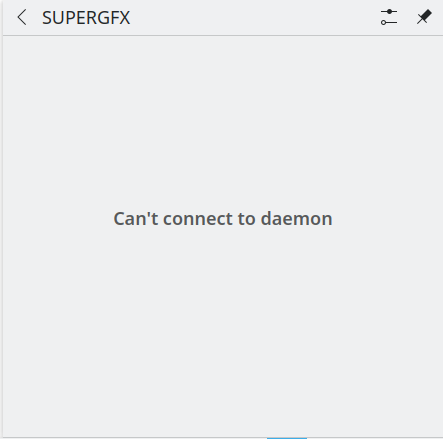
The output of systemctl status nvidia-persistencedwas the following:
● nvidia-persistenced.service - NVIDIA Persistence Daemon
     Loaded: loaded (/usr/lib/systemd/system/nvidia-persistenced.service; enabled; preset: enabled)
     Active: active (running) since Wed 2025-08-27 17:17:27 PDT; 4min 4s ago
 Invocation: ef829abc9fa04adb84d8f4d7354596e6
    Process: 1522 ExecStart=/usr/bin/nvidia-persistenced --verbose (code=exited, status=0/SUCCESS)
   Main PID: 1620 (nvidia-persiste)
      Tasks: 1 (limit: 47149)
        CPU: 27ms
     CGroup: /system.slice/nvidia-persistenced.service
             └─1620 /usr/bin/nvidia-persistenced --verbose
Summary so far from my point of view.
There is a problem with Nvidia+SecureBoot: in theory nvidia-driver-G06-kmp-default should take care of SecureBoot during module building (if SecureBoot was enabled at install time) but something went wrong apparently.
With SecureBoot disabled nvidia modules are loaded and working and nvidia-persistenced is active, so the Nvidia GPU should be working now.
I cannot comment about supergfxctl, I have no idea of what it is doing or what it requires to work properly.
And… it is too late at night here, so see you tomorrow (well, later today actually  ).
).
1 Like
So, could I re-enable secureboot now? Or will re-enabling it break the nvidia module again?
Regarding supergfxctl, it is a shame than we cannot get it to work it seems. I guess I’ll reach out to the ASUS-Linux community, but given how they seemingly abandoned OpenSUSE I do not have high hopes.
On the bright side, it seems that the ROG Control Center GUI tool that I installed is working well. The weird graphical issue I had earlier seemed to have resolved itself. and like it is mentioned in the guide, it assists with controlling both asusctl and supergfxctl. When applying the fan curves I do get notifications on the dgpu (nvidia gpu) being either active or suspended. I wish it was more informative on what it was doing though. No information regarding fan levels or cpu + gpu temps. More confusing is the almost lacking documentation regarding the software, which means I can only guess what each setting does. Fine if its something simple like the brightness of the keyboard light. Not so fine when I want to exactly know how the fan curve settings work and how they play with enabling, disabling/suspending the dgpu. Worse is that there doesn’t seem to be any version numbering, so I can only assume I have the latest version of the gui?
Maybe I could try reinstalling supergfxctl-plasmoid (what I believe to be the gui that keeps giving me the “cannot connect to daemon” errors), or try out asusctl tray, but that app doesn’t seem to have been updated in years.
I guess for some last side notes the aforementioned OpenSUSE guide recommended I enable ZRAM and add Packman as a repository. Would it be worth it or wise to add these? Packman seems to be useful for when I install Steam, and ZRAM seems to be useful in improving overall performance, if only a bit.


One problem at a time please 
Enabling SecureBoot will break the Nvidia drivers again (until we understand why that happened). In my view SecureBoot adds only false security, so leaving it disabled is not a big deal.
Do NOT use opi codecs, it is known for causing problems and you already have some interesting ones
You might be good to go without Packman or you might just need a few packages from that, see for instance this thread.
Adding zram might or might not help performance (and which performance?) but please don’t clutter this thread with unrelated problems.
Back to the original problem, check what the following command writes out now that the Nvidia drivers are apparently working:
systemctl status asusd power-profiles-daemon supergfxd
You may also check which processes are actually using which GPU with nvtop (zypper in nvtop if you don’t find it) and what is going on with the Nvidia GPU with nvidia-smi.
2 Likes
For this one should look at the currently enrolled certificates. I do not see them anywhere in this topic.
So when I booted up my laptop today, I got pass the two times I was asked to put in my disk encryption/secure boot password, and then I just had a black screen with a “_” on the top left (I can move my mouse cursor though. This happened twice before I tried turning Secure Boot Control back on in the BIOS, and I managed to get back in. Unfortunately that does make the nvidia daemon fail for the unknown reasons mentioned before. Double checked by reenabling Secure Boot Control and it still happened. It’s weird, it worked fine beforehand, so I do not know by Secure Boot Control being off leads to this result:

One problem at a time please
You might be good to go without Packman or you might just need a few packages from that, see for instance this thread.
Adding zram might or might not help performance (and which performance?) but please don’t clutter this thread with unrelated problems.
Fair enough, thank you for answering my unrelated questions anyway. Unfortunately with Secure Boot Control off creating a black screen boot issue, I cannot test the commands you gave me.
Apparently your system has a dual VGA setup, meaning that it can use one GPU or the other to output video; maybe when it chooses the AMD everything works, when it chooses the Nvidia you have a black screen.
Try to add nvidia-drm.modeset=1 to the boot command line, SecureBoot disabled and see how that goes.
That seemed to have worked! Thanks. Here is the out put for systemctl status asusd power-profiles-daemon supergfxd
systemctl status asusd power-profiles-daemon supergfxd
● asusd.service - ASUS Notebook Control
     Loaded: loaded (/usr/lib/systemd/system/asusd.service; static)
     Active: active (running) since Thu 2025-08-28 13:22:13 PDT; 7min ago
 Invocation: 6b5e935dc3c849298bf0f248b32c7620
    Process: 1489 ExecStartPre=/bin/sleep 1 (code=exited, status=0/SUCCESS)
   Main PID: 1674 (asusd)
      Tasks: 38 (limit: 47149)
        CPU: 395ms
     CGroup: /system.slice/asusd.service
             └─1674 /usr/bin/asusd

Warning: some journal files were not opened due to insufficient permissions.

● power-profiles-daemon.service - Power Profiles daemon
     Loaded: loaded (/usr/lib/systemd/system/power-profiles-daemon.service; enabled; preset: disabled)
     Active: active (running) since Thu 2025-08-28 13:22:16 PDT; 7min ago
 Invocation: bed2ffcd94d3455a99c4d0738d55f76c
   Main PID: 1983 (power-profiles-)
      Tasks: 4 (limit: 47149)
        CPU: 74ms
     CGroup: /system.slice/power-profiles-daemon.service
             └─1983 /usr/libexec/power-profiles-daemon

Warning: some journal files were not opened due to insufficient permissions.

● supergfxd.service - SUPERGFX
     Loaded: loaded (/usr/lib/systemd/system/supergfxd.service; enabled; preset: enabled)
     Active: active (running) since Thu 2025-08-28 13:22:12 PDT; 7min ago
 Invocation: ea024afceb1f4a169481f0174db6ec20
   Main PID: 1425 (supergfxd)
      Tasks: 17 (limit: 47149)
        CPU: 251ms
     CGroup: /system.slice/supergfxd.service
             └─1425 /usr/bin/supergfxd

Warning: some journal files were not opened due to insufficient permissions.
nvtop is quite the useful software. I’ll make sure to note that I have it in the future when studying gpu usage and other performance stuff. Right now though since the only thing I have on is a web browser, the nvidia gpu isn’t being used much, if at all.
Here is the output for nvidia-smi
nvidia-smi
Thu Aug 28 13:33:54 2025
+-----------------------------------------------------------------------------------------+
| NVIDIA-SMI 580.76.05              Driver Version: 580.76.05      CUDA Version: 13.0     |
+-----------------------------------------+------------------------+----------------------+
| GPU  Name                 Persistence-M | Bus-Id          Disp.A | Volatile Uncorr. ECC |
| Fan  Temp   Perf          Pwr:Usage/Cap |           Memory-Usage | GPU-Util  Compute M. |
|                                         |                        |               MIG M. |
|=========================================+========================+======================|
|   0  NVIDIA GeForce RTX 3060 ...    On  |   00000000:01:00.0 Off |                  N/A |
| N/A   42C    P8             10W /   60W |      15MiB /   6144MiB |      0%      Default |
|                                         |                        |                  N/A |
+-----------------------------------------+------------------------+----------------------+

+-----------------------------------------------------------------------------------------+
| Processes:                                                                              |
|  GPU   GI   CI              PID   Type   Process name                        GPU Memory |
|        ID   ID                                                               Usage      |
|=========================================================================================|
|    0   N/A  N/A            1988      G   /usr/bin/Xorg.bin                         4MiB |
+-----------------------------------------------------------------------------------------+
OK, the Nvidia GPU is working, all 3 daemons are active, if supergfxctl doesn’t work now I don’t know what to say next.
BTW, you are using X11? What Desktop Environment are you using?
Please be aware that X11 is going to be phased out, so as soon as you have sorted out basic problems I would give Wayland a chance.
I am using X11! At least I think so, I did echo $XDG_SESSION_TYPE in the terminal after I looked how to check if I am using X11 or Wayland and found this article. I am using the KDE Desktop Environment. I thought OpenSUSE and KDE switched to Wayland a bit ago. That and the fact that X11 was not supported for asusctl and presumably the other ASUS ROG Linux software. They all seemed to work well, so I assumed I was already running on Wayland. Maybe I missed something on my end. Is it possible to switch?
cho $XDG_SESSION_TYPE
x11
At the login screen look at the lower left, there should be a button named “Desktop session”; clicking on it you should be able to choose “Plasma (Wayland)”.
Thanks. I am now using wayland. supergfxctl-plasmoid still can’t connect to daemon though. I would’ve tried rebooting but it turns out my session automatically defaults to the X11 one. I saw this post regarding changing the default SDDM to plasma so I think I’ll try the solution that post came up with.
Try the command line and see if it gives errors:
supergfxctl --help
Optional arguments:
  -h, --help         print help message
  -m, --mode         Set graphics mode
  -v, --version      Get supergfxd version
  -g, --get          Get the current mode
  -s, --supported    Get the supported modes
  -V, --vendor       Get the dGPU vendor name
  -S, --status       Get the current power status
  -p, --pend-action  Get the pending user action if any
  -P, --pend-mode    Get the pending mode change if any