New install, can I fix the GRUB2 screen resolution?

I installed Tumbleweed-Slowroll recently for the first time on my laptop with both AMD and NVIDIA GPUs and I had to use nomodeset for the installer to work as described here. The graphics are all fine now that I installed it and removed nomodeset, but the GRUB menu still has a weird resolution that’s stretched in an ugly way, probably 800x600 (my laptop is 2560x1600, which is a different ratio)

YaST Boot Loader says my bootloader is “GRUB2 with BLS” and there are no options for changing its resolution there and all the advice I’m finding online assumes a config file like /etc/default/grub exists and I don’t have one.

Is there any way for me to change the resolution?

Go to Yast > Boot Loader> Kernel Parameters > Console Resolution
then click the drop down menu. Default is Autodetect by grub2.

There’s no Console Resolution option, only optional kernel parameters and cpu mitigations

Hm, looks different to the normal view. Do you use normal grub2 or a different bootloader?

1 Like

Sorry. I went back and read what you said.

I missed the “BLS”. I’ve read some information on that but never used it. I assume that is why I have Console Resolution and you don’t.

Have you checked Cockpit?
It may have a setting for it. If not you’ll need someone who has actually used BLS.

Cockpit doesn’t have grub settings

1 Like

It’s “grub2 with bls”, I don’t know how exactly it’s different from regular grub2, but it was the default one and I’m not able to switch to something else (it says “switching from grub2-bls to another bootloader is currently not supported”)

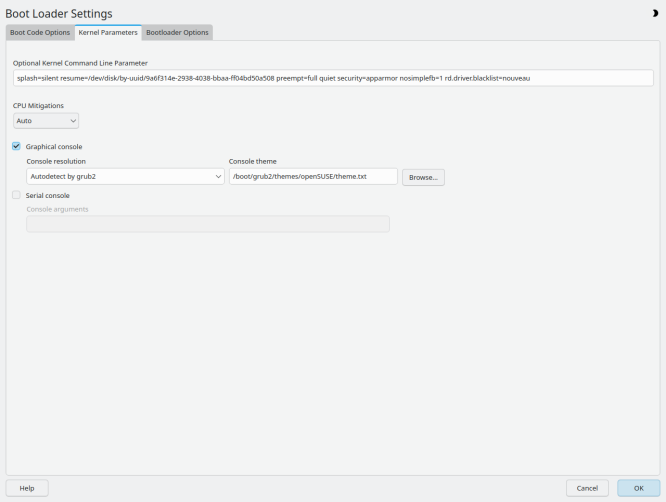
My Leap 16.0 in Boot Code Options is set to GRUB2 for EFI and gives this Kernel Parameters window:


The dropdown menu for Console resolution has six other choices.

I can confirm that “Grub2 with BLS” doesn’t respect any settings from /etc/default/grub even if it’s there. Not sure why the Slowroll installer installs it by default, but you can change it during installation (at least if you’re using the YaST installer).

According to the following News Article here, it seems to be possible to change the bootloader by setting LOADER_TYPE in /etc/sysconfig/bootloader. However, I didn’t test if you can just install the regular grub2 package and change the file to use it instead.

I found this.
BLS is Boot Loader Specification and it’s used by Systemd boot. Scroll down and you’ll find information about setting the console resolution with a loader.conf configuration file. It also says it can be specified in the menu file which would override the loader.conf file.

loader.conf — Configuration file for systemd-boot

@mendres82

I’m pretty sure there wasn’t a boot loader changing option like that in the installer.

The article is talking about changing the bootloader to grub2-bls, YaST says it’s not supported to switch from grub2-bls and I don’t want to break things on accident

@jsmith64 the page you linked doesn’t actually mention a “menu file”, are you talking about EFI variables or something? I wasn’t able to find where those are defined and if they’d be helpful to me at all.

I’ve tried changing the resolution settings in loader.conf, but that had no effect, foreshadowed by the fact its contents weretimeout 8 while I changed the timeout to 3 through YaST earlier


I’ve now snooped through the files in /boot more extensively and finally found /boot/efi/EFI/opensuse/grubenv. Turns out that’s the file where the timeout is actually set and it seems to be using the GRUB environmental variables, except setting gfxmode to my actual resolution did nothing, setting gfxpayload to text to force text mode also did nothing… but changing the color variables changed the colors of the glitchy ghosts of the text interface that appear for a fraction of a second every time I switch between menu entries. (I also noticed them earlier but assumed they weren’t related to resolution issues at first…)

No idea if there’s anything else I could try

The news article also says this

However, with the new BLS subpackage, this file, along with the fonts and graphical assets for the theme, and the necessary modules (such as bli.mod), are now included in the internal squashfs within the EFI binary.

Which makes me suspect that any config changes would need to go into that EFI binary, and I have no idea how that is done, and it sounds like something I shouldn’t mess with as a regular user and really don’t want to anyway

Maybe my issues are actually a bug that I’d need to submit a bug report about? I’m extremely out of my depth here though, no idea what and where the relevant bug tracker even is…

1 Like

grubbls is the special purpose built grub2 image that ignores “normal” grub.cfg and grub environment.

OTOH grubbls is not systemd-boot and it does not use this file.

If your firmware offered your native resolution, grub would have selected it. If it comes up in reduced resolution, it implies that firmware does not offer it (via the standard EFI protocols). Unfortunately, signed grub2 images do not include videoinfo command, so there is no way to check. You may try disabling Secure Boot, loading the “normal” grub2 binary and check, what videoinfo command shows.

That is not a valid value for the gfxpayload. To use text mode one needs to select a standard console driver instead of gfxterm, but grubbls offers no way to do it.

grub2-bls is becoming the default bootloader in Tumbleweed. Anyone having such problems needs to open bug report to make developers aware of them.

2 Likes

This came from AI.

I searched for Tumbleweed "GRUB_ENABLE_BLSCFG" console resolution.

Here’s the result.

Read approach 2.

The GRUB_ENABLE_BLSCFG variable controls whether GRUB uses Boot Loader Specification (BLS) snippets, which can affect how console resolution settings are applied in openSUSE Tumbleweed. When BLS is enabled (the default in modern openSUSE and Fedora), traditional methods of setting the GRUB resolution in /etc/default/grub using variables like GRUB_GFXMODE might be ignored or require additional configuration steps in a user.cfg file to work correctly.

Understanding the Mechanism

  • GRUB_ENABLE_BLSCFG=true (Default): GRUB reads configuration from /boot/loader/entries/*.conf files (BLS snippets) and the resolution might default to a low setting (e.g., 1024x768 or lower on high-resolution screens) because generic settings are used.
  • GRUB_ENABLE_BLSCFG=false: GRUB relies on the traditional, monolithic /boot/grub2/grub.cfg file, generated from /etc/default/grub and scripts in /etc/grub.d/. This method is more predictable for applying custom resolutions via GRUB_GFXMODE.

Steps to Adjust Console Resolution

To change the console resolution in Tumbleweed, you generally have two approaches:

Approach 1: Modify /etc/default/grub (Recommended for openSUSE/Tumbleweed)

This is the standard way in openSUSE, which often uses BLS but still processes /etc/default/grub during configuration generation.

  1. Open the file /etc/default/grub in a text editor as root:

bash

sudo nano /etc/default/grub
  1. Modify or add the following lines:
  • Set the output to gfxterm to enable graphical console output:
GRUB_TERMINAL_OUTPUT="gfxterm"
  • Set the desired resolution using GRUB_GFXMODE. List multiple resolutions for fallback, with auto as a last resort:
GRUB_GFXMODE="1920x1080,1280x1024,1024x768,auto"
  • Ensure GRUB_GFXPAYLOAD_LINUX="keep" is set so the resolution is maintained through the boot process into the Linux kernel console (TTYs).
  • Ensure GRUB_ENABLE_BLSCFG=true (or remove the line to use the default of true) to keep using BLS snippets for kernel entries.
  1. Save the file and exit the editor.
  2. Regenerate the GRUB configuration file:

bash

sudo grub2-mkconfig -o /boot/grub2/grub.cfg

5.Note: The exact path for the grub config file might vary slightly (e.g., for UEFI systems it might involve an EFI path), but Tumbleweed’s grub2-mkconfig typically handles this correctly based on your system’s setup.*
6. Reboot your system to see the changes.

Approach 2: Use /boot/grub2/user.cfg

If modifying /etc/default/grub does not work, you can place raw GRUB commands in /boot/grub2/user.cfg (create it if it doesn’t exist). This file is loaded by GRUB directly.

bash

sudo nano /boot/grub2/user.cfg

Add these lines to user.cfg:

grub

set terminal_output="gfxterm"
set gfxmode="1920x1080,1280x1024,1024x768,auto"
load_video
insmod gfxterm
set gfxpayload=keep

No grub2-mkconfig command is needed after editing user.cfg, just a reboot.

If you face issues, you can boot into the GRUB command line (press c when the menu appears) and use the videoinfo or vbeinfo command to see which resolutions are supported by your hardware and firmware.

And is completely irrelevant for this topic.

1 Like

Sorry, it was confusing. It is the valid value, but gfxpayload has no impact on the grub own’s resolution; it tells grub to set this mode before invoking kernel.

You may try setting gfxmode=keep. It tells grub to (try to) retain whatever was set by BIOS skipping text mode.

I tried that first and it didn’t help, yeah

Not sure how I would do that, replace the loader in /etc/sysconfig/bootloader?

Yes, it needs to be set before gfxterm is initialized and it is initialized very early, before grubbls gets around to loading environment block.

Yes, set it to grub2-efi and run

update-bootloader --reinit

You will need to disable Secure Boot in the BIOS.

YaST may support changing bootloader too.

Another alternative is systemd-boot which normally runs in text mode (although here one may get problem with text size).

YaST doesn’t, it says changing from grub2-bls to a different one isn’t supported

You will also need to disable secure boot support in /etc/sysconfig/bootloader, otherwise you will get the signed image without videoinfo. Actually, after you changed bootloader there you should be able to configure it using YaST.