Do I type all this in terminal (console?) (sorry if question is stupid)
@vajcek yes and should get the result;
-
Command:
sha256sum -c Leap-16.0-offline-installer-x86_64-Build171.1.install.iso.sha256 -
Result:
Leap-16.0-offline-installer-x86_64-Build171.1.install.iso: OK
1 Like
About password: is it needed to be added or not?
About usb-stick: I have god one that has linux installation on it. Will system offer to erase contents, or I have to do that? If I must do that, what is command thast i have to use?
@vajcek The password is not necessay, for me on multiple installs I can do everything remotely which is why I use it 
That wipefs command will remove everything off the USB device, so if it has something important don’t use…
1 Like
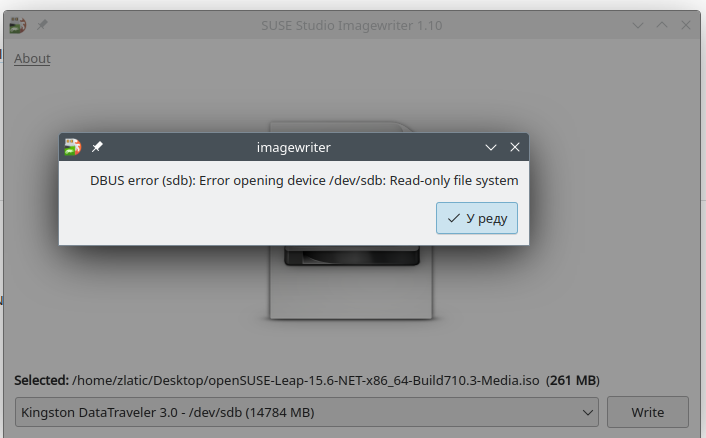
After last-night successfully downloading file and sha verification, today everything has gone down. This is what I ve got (especially - usb became read-only). Where did I go wrong? Is there possibility to get back my usb-stick in use?
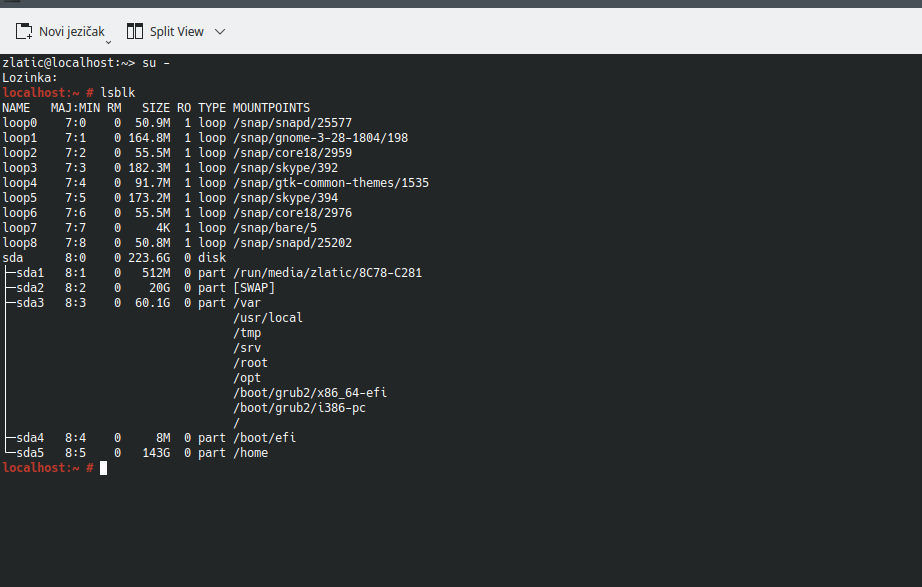
@vajcek So /dev/sda is your installed system? Why are you using snap?
How do you mean read-only for your USB device?
I wanted to get back Leap 15.6 on usb-stick usind SuSE studio, but I’ve god messdage liker in picture
@vajcek so did you wipefs it before trying to use again? When you plug it in and not using image writer, what output does it show from lsblk and mount commands?
@vajcek umount it and try SUSE studio again
what the full command is for wipefs? I did not do wipefs.
When I plug in and not use SuSE studio image-writer it is like in picture below
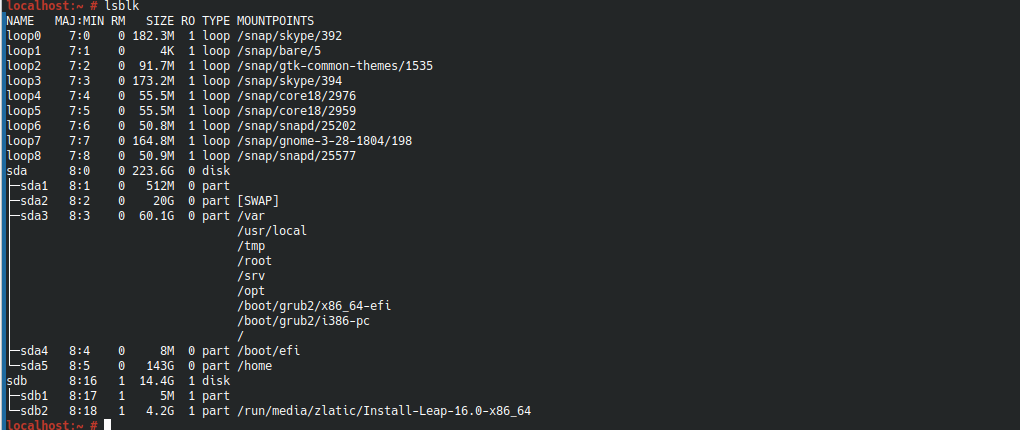
What is command for this? Is it enough to plug it out and then plug in?
You could also do:
sudo dd if=/dev/zero of=/dev/sdb bs=1M count=50
This will destroy the partition table on the USB
Next:
sudo dd if=<path/to/iso> of=/dev/sdb bs=4M --progress
Hi @vajcek I hadn’t use the online installer in years so can’t tell if it should be the one in your download. I always use the offline iso.
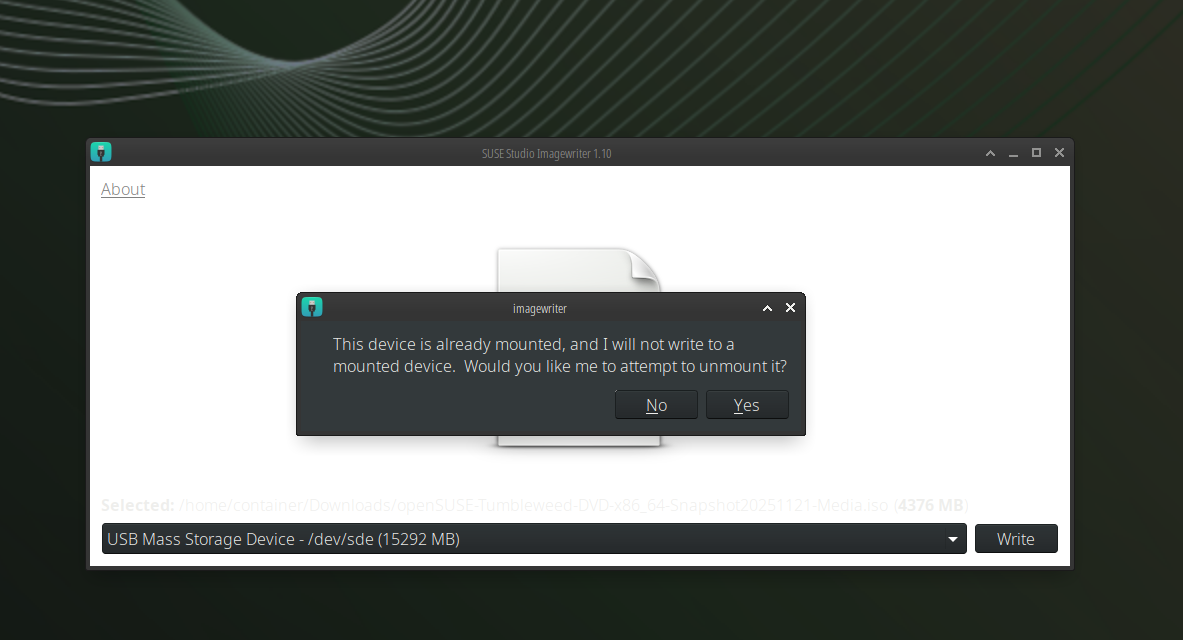
My first post above is telling you to umount the usb stick before using the SUSE Studio image writer. If the usb is mounted the image writer will not do the work.
See my picture below.
My friends, thank you for your advices and experience, especially for something like lessons. I did not try all you said me, because in less than half an hour I have to be on my job.
Just one question, but you gave answer that could make my question: would ih help if I try with anoother stick?
Thank you. Looking forward to apply your advices. I just please you to be here if it would be needed.
- As long as you did not do things correct with this stick, there is no proof there is something wrong with the stick.
- When you do the same things wrong with another stick, using it will not help.
3 Likes
Workdays are not for anything but job. If you also have students to teach to, averything smells like I will try it for weekwnd.
- My idea is to try again, reading better with “clean” (formated) usb stick, but I can not format it. That is why I mention new usb-stick.

@vajcek wiping and creating a new gpt setup on it with gdisk, then create a partition on it and format to test… But if it went read-only, then it could be suspect…
I do not understand this. You only need a “stick”. What is on it (partitioning and or “formatting”) is of no importance. And trying to do something like “formatting” is complete waste of time.
The only thing you have to do is connect the device, find out what the device file is (like /dev/sdb) and do the dd command as given earlier.
People have this done millions of times and did not need five days for it like you.
Sorry, but am I completely misunderstanding what this all is about?
I understand that we try to let the OP create a bootable openSUSE installation device from a downloaded openSUSE installation ISO.
When that is still correct, the I do not see why putting anything like partition tables and/or file systems is of any use here.
When I am wrong and this is about something else, please tell me and I will quit from this topic.