How to disable “window rollup”? (The behavior changed…) Please, I need the precise steps (I already asked some LLM, but that didn’t work out for me). So, if someone of you has done this successfully already… TIA!
Hi, check your ~>/.config/xfce4/labwc/rc.xml
Your decoration probably is set to “server”. Change it to “client”
It will hide the server decoration and you will be able avoid to have the rollup disable.
It’s something like this
Er, well. As I don’t really get it, yet, I would like to ask again for more details.
Is it sufficient to switch decoration from server to client? (Besides, I don’t have this setting currently in my ~/.config/xfce4/labwc/rc.xml, so it seems to be set to server as an internal default setting.) Is “window rollup” disabled then already? — Or is it just possible to disable it then? By doing what exactly?
Hi @C7NhtpnK
I would assume that server is the default. I remember now that I just added the option on my first post base from labwc documentation. You can add the option for client in your ~>/.config/xfce4/labwc/rc.xml. To add it will be like this:
Mine is already customized to my liking. For the default rc.xml, you can see it in /usr/share/xfce4/labwc/labwc-rc.xml.
To answer your " window rollup disable" It will not totally disable it using the client decoration.
It will just hide the server decoration and use the client, if you click the client decoration rollup/down the function is disabled, but if you click the decoration option, the server decoration will appear on top of the client decoration and the rollup/down option will function. If you click the decoration option again the server decoration will close and the client decoration remains. hope I explained it a bit more understandable.
Mmh, this was a lot easier to manage on X11 (until my Leap 15.6) than on Wayland (since my Leap 16.0).
I have also already “googled” for details (like official info, FAQ, similar). But I hardly find appropriate results. And asking some LLM has been confusing: offered some actual info from my system → try this — not worked out — offered some more/other info → oh, yes, try this…
And further: you are talking about ssd vs. csd. LLMs have never, so far. They talked about some other settings (mouse-bindings) but referring to several file locations (whenever I noted that it hasn’t worked yet).
@C7NhtpnK
I found maybe a way of taking the rollup/down option. Though I haven’t tried it.
Go to /etc/xdg/labwc and copy and paste the menu.xml file in your ~>/.config/xfce/labwc
and remove the rollup/down menu. This way it will not show up when mouse-right-clicking the taskbar. If it will not work do it also in your ~>/config/labwc so both have the same menu options.
Some reading also using:
man labwc-config and man labwc-theme
potential existence and use of rc.xml and menu.xml
several locations for these config files on system: /etc/…, /usr/share/…, ~/.config/…at least
is it mousebind only? what is it exactly? (limited to which sections?)
there is also some /defaultin some of my config files… so, maybe, deleting items is not sufficient (sometimes, items are not existent, indeed: so, they acutally cannot be deleted…), but somehow defaults are invoked and have to overwritten explicitly (where actually? more than once?)
For personally me, this is not quite straight-forward… I have set or modified some config files (by the TUI way) on my system — but this is quite challenging for me!
@C7NhtpnK
It’s not confusing. The rc.xml and menu.xml file in your ~>/config files will only affect your user.
It is use by your user to customize for the user’s liking/taste. You can always remove it and the one in the root directory config will govern.
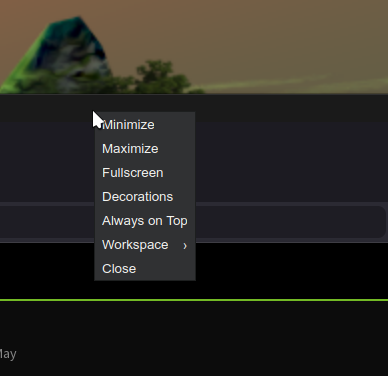
By the way, I tried my last suggestion in the menu.xml by coummenting-out the rollup/down menu and it work. It was gone from the mouse right-click option so it will never be accidentally selected.
See screenshot
OK… Seems you have some kind of solution. But, I am sorry, I beg for your direct and explicit help.
~/.config/xfce4/labwc/environment (probably not this one)
gunnersson@tulicube:~> cat ~/.config/xfce4/labwc/environment
# Example environment file for Xfce
# See also example config files shipped with labwc

##
## Use the XKB_DEFAULT_LAYOUT variable to set the keyboard layout. For example
## to start with Swedish keyboard layout set it to 'se'. If you are unsure what
## your country code is, refer to the layout section of:
## /usr/share/X11/xkb/rules/evdev.lst
##
## Multiple keyboard layouts can be set by comma-separating the country codes.
## If a variant layout is needed, the syntax is layout(variant)
## If multiple layouts are used, specify the toggle-keybind using
## XKB_DEFAULT_OPTIONS as show below.
##
## For further details, see xkeyboard-config(7)
##

XKB_DEFAULT_LAYOUT=de
XKB_DEFAULT_MODEL=pc104

##
## Set cursor theme and size. Find system icons themes with:
## `find /usr/share/icons/ -type d -name "cursors"`
##

XCURSOR_THEME=Adwaita
gunnersson@tulicube:~>
~/.config/xfce4/labwc/rc.xml
gunnersson@tulicube:~> cat ~/.config/xfce4/labwc/rc.xml
<?xml version="1.0"?>
<!--
  This is a very simple config file with many options missing. For a
  complete set of options with comments, see Labwc docs/rc.xml.all
-->
<labwc_config>

  <placement>
    <policy>automatic</policy>
  </placement>

  <theme>
    <name>Adwaita</name>
    <cornerRadius>8</cornerRadius>
    <font name="sans" size="10"/>
  </theme>

  <desktops number="4" />

  <keyboard>
    <default/>
    <!-- Use a different terminal emulator -->
    <keybind key="W-Return">
      <action name="Execute" command="xfce4-terminal"/>
    </keybind>
    <!--
      Remove a previously defined keybind
      A shorter alternative is <keybind key="W-F4" />
    -->
    <keybind key="W-F4">
      <action name="None"/>
    </keybind>

    <numlock>on</numlock>

    <!--
       Suggested Xfce key bindings.
    -->
    <keybind key="XF86_AudioLowerVolume">
      <action name="Execute" command="amixer sset Master 5%-" />
    </keybind>
    <keybind key="XF86_AudioRaiseVolume">
      <action name="Execute" command="amixer sset Master 5%+" />
    </keybind>
    <keybind key="XF86_AudioMute">
      <action name="Execute" command="amixer sset Master toggle" />
    </keybind>
    <keybind key="W-q">
      <action name="Close" />
    </keybind>
    <keybind key="A-Tab">
      <action name="NextWindow" />
    </keybind>
    <keybind key="W-Tab">
      <action name="ToggleMaximize" />
    </keybind>
    <keybind key="W-1">
      <action name="GoToDesktop" to="1" />
    </keybind>
    <keybind key="W-2">
      <action name="GoToDesktop" to="2" />
    </keybind>
    <keybind key="W-3">
      <action name="GoToDesktop" to="3" />
    </keybind>
    <keybind key="W-4">
      <action name="GoToDesktop" to="4" />
    </keybind>
    <keybind key="XF86_Display">
      <action name="Execute" command="xfce4-display-settings --minimal" />
    </keybind>
    <keybind key="W-P">
      <action name="Execute" command="xfce4-display-settings --minimal" />
    </keybind>
    <keybind key="Print">
      <action name="Execute" command="xfce4-screenshooter -f" />
    </keybind>
    <keybind key="XF86_PowerOff">
      <action name="Execute" command="xfce4-session-logout" />
    </keybind>
  </keyboard>

  <snapping>
    <range>10</range>
  </snapping>

</labwc_config>
gunnersson@tulicube:~>
/etc/xdg/labwc/menu.xml
gunnersson@tulicube:~> cat /etc/xdg/labwc/menu.xml
<?xml version="1.0" encoding="UTF-8"?>

<openbox_menu>
<!-- Note: for localization support of menu items "client-menu" has to be removed here -->
<menu id="client-menu">
  <item label="Minimize">
    <action name="Iconify" />
  </item>
  <item label="Maximize">
    <action name="ToggleMaximize" />
  </item>
  <item label="Fullscreen">
    <action name="ToggleFullscreen" />
  </item>
  <item label="Roll Up/Down">
    <action name="ToggleShade" />
  </item>
  <item label="Decorations">
    <action name="ToggleDecorations" />
  </item>
  <item label="Always on Top">
    <action name="ToggleAlwaysOnTop" />
  </item>
  <!--
    Any menu with the id "workspaces" will be hidden
    if there is only a single workspace available.
  -->
  <menu id="workspaces" label="Workspace">
    <item label="Move Left">
      <action name="SendToDesktop" to="left" />
    </item>
    <item label="Move Right">
      <action name="SendToDesktop" to="right" />
    </item>
    <separator />
    <item label="Always on Visible Workspace">
      <action name="ToggleOmnipresent" />
    </item>
  </menu>
  <!--
    openbox default workspace selector
    to use replace above workspace menu with the example below
    the label is required, but you can change the text.

    <menu id="client-send-to-menu" label="Send to..." />
  -->
  <item label="Close">
    <action name="Close" />
  </item>
</menu>

<menu id="root-menu">
  <!-- Make client-list-combined-menu a submenu of root-menu
       You must supply a label or it will not appear in root-menu -->
  <!--
  <menu id="client-list-combined-menu" label="Running..." />
  -->
  <item label="Web browser">
    <action name="Execute" command="firefox" />
  </item>
  <item label="Terminal">
    <action name="Execute" command="alacritty" />
  </item>
  <item label="Reconfigure">
    <action name="Reconfigure" />
  </item>
  <item label="Exit">
    <action name="Exit" />
  </item>
  <item label="Poweroff">
    <action name="Execute" command="systemctl -i poweroff" />
  </item>
</menu>

<menu id="some-custom-menu">
  <!--
    Creates menu title.
    To create an empty header with no text,
    set label=" ", not label=""
  -->
  <separator label="custom menu" />
  <item label="Reconfigure">
    <action name="Reconfigure" />
  </item>
  <item label="Exit">
    <action name="Exit" />
  </item>
</menu>

</openbox_menu>
gunnersson@tulicube:~>
/etc/xdg/labwc/rc.xml
gunnersson@tulicube:~> cat /etc/xdg/labwc/rc.xml
<?xml version="1.0"?>

<!--
  This is a very simple config file with many options missing. For a complete
  set of options with comments, see docs/rc.xml.all
-->

<labwc_config>

  <theme>
    <name></name>
    <cornerRadius>8</cornerRadius>
    <font name="sans" size="10" />
  </theme>

  <keyboard>
    <default />
    <!-- Use a different terminal emulator -->
    <keybind key="W-Return">
      <action name="Execute" command="foot" />
    </keybind>
    <!--
      Remove a previously defined keybind
      A shorter alternative is <keybind key="W-F4" />
    -->
    <keybind key="W-F4">
      <action name="None" />
    </keybind>
  </keyboard>

  <mouse>
    <default />
    <!-- Show a custom menu on desktop right click -->
    <context name="Root">
      <mousebind button="Right" action="Press">
        <action name="ShowMenu" menu="some-custom-menu" />
      </mousebind>
    </context>
  </mouse>

</labwc_config>
gunnersson@tulicube:~>
/usr/share/xfce4/labwc/labwc-environment (probably not this one)
gunnersson@tulicube:~> cat /usr/share/xfce4/labwc/labwc-environment
# Example environment file for Xfce
# See also example config files shipped with labwc

##
## Use the XKB_DEFAULT_LAYOUT variable to set the keyboard layout. For example
## to start with Swedish keyboard layout set it to 'se'. If you are unsure what
## your country code is, refer to the layout section of:
## /usr/share/X11/xkb/rules/evdev.lst
##
## Multiple keyboard layouts can be set by comma-separating the country codes.
## If a variant layout is needed, the syntax is layout(variant)
## If multiple layouts are used, specify the toggle-keybind using
## XKB_DEFAULT_OPTIONS as show below.
##
## For further details, see xkeyboard-config(7)
##

XKB_DEFAULT_LAYOUT=en
XKB_DEFAULT_MODEL=pc104

##
## Set cursor theme and size. Find system icons themes with:
## `find /usr/share/icons/ -type d -name "cursors"`
##

XCURSOR_THEME=Adwaita
gunnersson@tulicube:~>
/usr/share/xfce4/labwc/labwc-rc.xml
gunnersson@tulicube:~> cat /usr/share/xfce4/labwc/labwc-rc.xml
<?xml version="1.0"?>
<!--
  This is a very simple config file with many options missing. For a
  complete set of options with comments, see Labwc docs/rc.xml.all
-->
<labwc_config>

  <placement>
    <policy>automatic</policy>
  </placement>

  <theme>
    <name>Adwaita</name>
    <cornerRadius>8</cornerRadius>
    <font name="sans" size="10"/>
  </theme>

  <desktops number="4" />

  <keyboard>
    <default/>
    <!-- Use a different terminal emulator -->
    <keybind key="W-Return">
      <action name="Execute" command="xfce4-terminal"/>
    </keybind>
    <!--
      Remove a previously defined keybind
      A shorter alternative is <keybind key="W-F4" />
    -->
    <keybind key="W-F4">
      <action name="None"/>
    </keybind>

    <numlock>on</numlock>

    <!--
       Suggested Xfce key bindings.
    -->
    <keybind key="XF86_AudioLowerVolume">
      <action name="Execute" command="amixer sset Master 5%-" />
    </keybind>
    <keybind key="XF86_AudioRaiseVolume">
      <action name="Execute" command="amixer sset Master 5%+" />
    </keybind>
    <keybind key="XF86_AudioMute">
      <action name="Execute" command="amixer sset Master toggle" />
    </keybind>
    <keybind key="W-q">
      <action name="Close" />
    </keybind>
    <keybind key="A-Tab">
      <action name="NextWindow" />
    </keybind>
    <keybind key="W-Tab">
      <action name="ToggleMaximize" />
    </keybind>
    <keybind key="W-1">
      <action name="GoToDesktop" to="1" />
    </keybind>
    <keybind key="W-2">
      <action name="GoToDesktop" to="2" />
    </keybind>
    <keybind key="W-3">
      <action name="GoToDesktop" to="3" />
    </keybind>
    <keybind key="W-4">
      <action name="GoToDesktop" to="4" />
    </keybind>
    <keybind key="XF86_Display">
      <action name="Execute" command="xfce4-display-settings --minimal" />
    </keybind>
    <keybind key="W-P">
      <action name="Execute" command="xfce4-display-settings --minimal" />
    </keybind>
    <keybind key="Print">
      <action name="Execute" command="xfce4-screenshooter -f" />
    </keybind>
    <keybind key="XF86_PowerOff">
      <action name="Execute" command="xfce4-session-logout" />
    </keybind>
  </keyboard>

  <snapping>
    <range>10</range>
  </snapping>

</labwc_config>
gunnersson@tulicube:~>
To change from server default to client, insert this on top of your ~>/config/xfce4/labwc/rc.xml
<core>
    <decoration>client</decoration>
  </core>
See my post #3 in this thread
For the window rollup/down
Copy the menu.xml file from /etc/xdg/labwc/ and paste it in your ~./.config/xfce4/labwc/
Paste it also in your~>/.config/labwc/.
I’m attaching this menu.xml to show you how the rollup/down was disable.
See The <!-- at he start and the --> at the end. That’s the one to use in disabling it.
If you made a mistake the file will not open in your browser and will give you the line error.
When done editing logout then login to take effect the changes.
So, whenever I said it is still not working it told me to touch other locations and was complaining about some </default>…
For the last, what is actually the difference between ssd and csd? I would even have been able to switch between them without reading the docu(!)… but I have just no clue what it means?!
OK, then: why can I disable the “windows rollup” in csd only and not in ssd? So, I have to switch to csd manualy to be able to disable it as ssd seems to be the default invoked internally (without being stated explicitly)?
Maybe…! The complete offer of settings for labwc is overwhelming somehow!
Yes!
Found out:
ssd is the (implicit) default. It can be set explicitly (additionally). csdmust be set explicitly (when you want to use it.
when switching from ssdto csd the settings offered by you seem to be sufficient (don’t actually know if this holds fully…): (1)
when staying with ssd (implicitly or set explicitly) you have to set more settings, but get it working then (2)
Details:
~/.config/xfce4/labwc/menu.xml
gunnersson@tulicube:~> cat ~/.config/xfce4/labwc/menu.xml
<?xml version="1.0" encoding="UTF-8"?>

<openbox_menu>
<!-- Note: for localization support of menu items "client-menu" has to be removed here -->
<menu id="client-menu">
  <item label="Minimize">
    <action name="Iconify" />
  </item>
  <item label="Maximize">
    <action name="ToggleMaximize" />
  </item>
  <item label="Fullscreen">
    <action name="ToggleFullscreen" />
  </item>
  <!--
  <item label="Roll Up/Down">
    <action name="ToggleShade" />
  </item>
  -->
  <!--
  <item label="Decorations">
    <action name="ToggleDecorations" />
  </item>
  -->
  <!--
  <item label="Always on Top">
    <action name="ToggleAlwaysOnTop" />
  </item>
  -->
  <!--
    Any menu with the id "workspaces" will be hidden
    if there is only a single workspace available.
  -->
  <!--
  <menu id="workspaces" label="Workspace">
    <item label="Move Left">
      <action name="SendToDesktop" to="left" />
    </item>
    <item label="Move Right">
      <action name="SendToDesktop" to="right" />
    </item>
    <separator />
    <item label="Always on Visible Workspace">
      <action name="ToggleOmnipresent" />
    </item>
  </menu>
  -->
  <!--
    openbox default workspace selector
    to use replace above workspace menu with the example below
    the label is required, but you can change the text.

    <menu id="client-send-to-menu" label="Send to..." />
  -->
  <item label="Close">
    <action name="Close" />
  </item>
</menu>

<menu id="root-menu">
  <!-- Make client-list-combined-menu a submenu of root-menu
       You must supply a label or it will not appear in root-menu -->
  <!--
  <menu id="client-list-combined-menu" label="Running..." />
  -->
  <item label="Web browser">
    <action name="Execute" command="firefox" />
  </item>
  <item label="Terminal">
    <action name="Execute" command="alacritty" />
  </item>
  <item label="Reconfigure">
    <action name="Reconfigure" />
  </item>
  <item label="Exit">
    <action name="Exit" />
  </item>
  <item label="Poweroff">
    <action name="Execute" command="systemctl -i poweroff" />
  </item>
</menu>

<menu id="some-custom-menu">
  <!--
    Creates menu title.
    To create an empty header with no text,
    set label=" ", not label=""
  -->
  <separator label="custom menu" />
  <item label="Reconfigure">
    <action name="Reconfigure" />
  </item>
  <item label="Exit">
    <action name="Exit" />
  </item>
</menu>

</openbox_menu>
gunnersson@tulicube:~>
I personally don’t like the “Window Rollup”. So I needed disabling it. I also don’t use (“like” is the wrong expression — I rather don’t use it) more than 1 workspace. So, I have my desktop now.
When looking at /usr/share/doc/labwc/rc.xml.all one can see what is possible in general: it’s massive! Maybe some other day I will come back to it.
Thank you for pointing me to the right keys… I then found the other stuff by research. I am fine at this moment.


 (2)
(2)