Hello everyone. A new Linux user here.
Using dual boot setup - OpenSUSE Tumbleweed (KDE Plasma 6) and Windows 11.
Device: Lenovo IdeaPad Slim 1 (Ryzen 7 5700U with Vega 8 iGPU + 16GB of RAM)
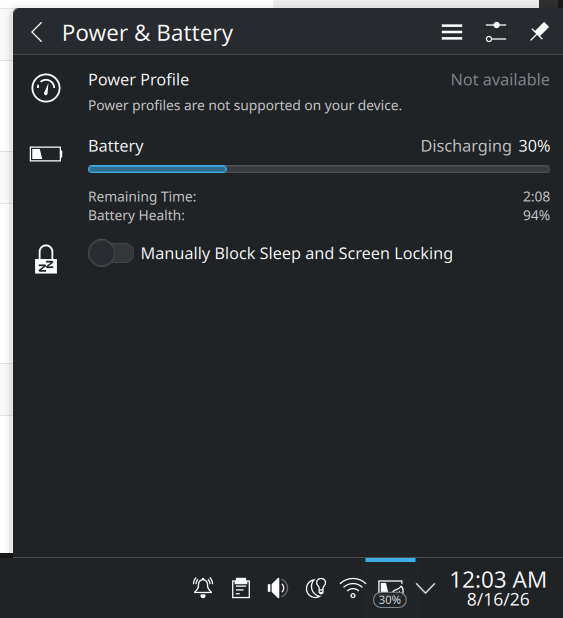
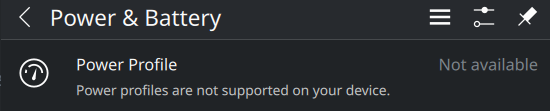
My issue is that in the “Power profiles” option is showing as not supported on my Power & Battery tab, as seen in the uploaded image.
This functionality is rather dear to me, due to my Windows 11 habits (I tend to switch to performance mode during gaming and video editing, and rest of the time I kept the PC on settings that use the least power).
What I’d like to know:
-
On topic:
- Could the GUI interface for power profiles in Power & Battery tab be enabled?
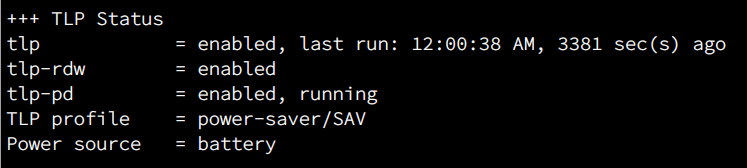
- If not, is power-profiles-daemon or TLP good enough for handling that stuff? (Currently using TLP. Replaced power-profiles-daemon just a few hours ago)
-
Might be off-topic:
- How to replicate the least power consuming setup and highest performance output setup on my current installation?
- Not based on exact data, but it appears to me that in my OpenSUSE TW setup, both the idle and in-use battery usage has increased as compared to my Win 11 installation. I have been using power-saving mode on both power-profiles-daemon and TLP. Any way to minimize battery drain, while not making the laptop unusable?
I have skimmed over tlp.conf, but haven’t made any changes to the file.
Apologies for unconventional mannerisms. Please feel free to let me know what information would actually allow you to help me.
@Cat-tail_48 Hi and welcome to the Forum 
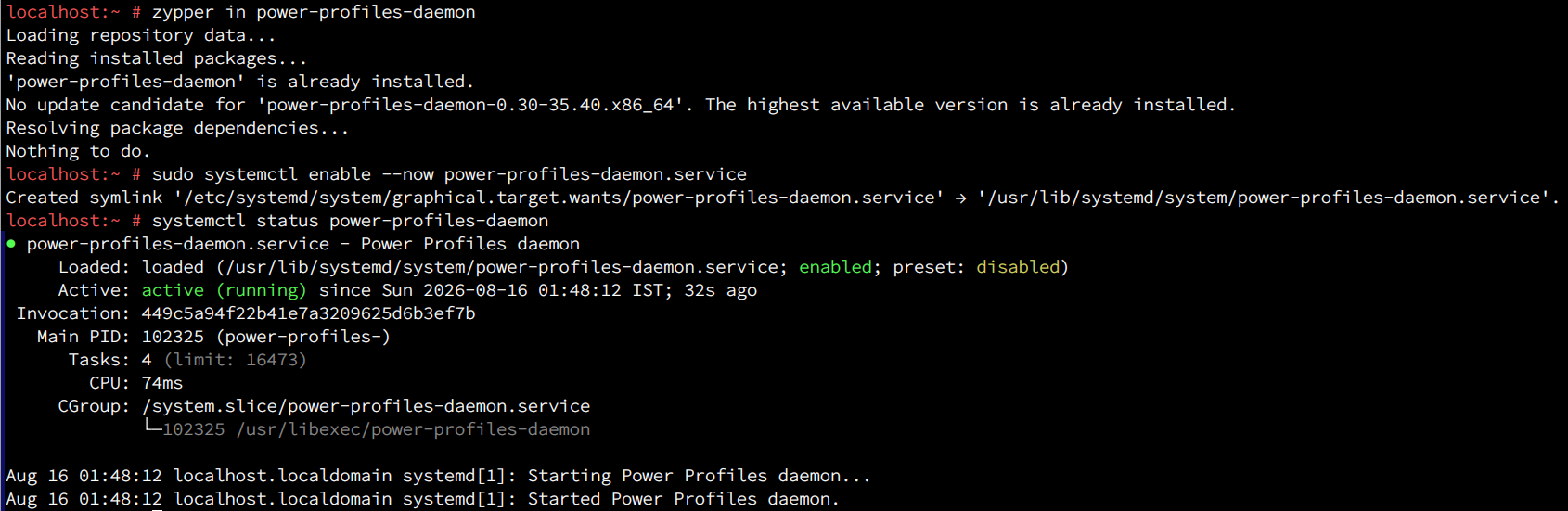
So is the power-profiles-daemon package installed and the service enabled and started?
No way malcolm lewis himself answered, you literally answer all the queries
power-profiles-daemon package was prompted to be uninstalled by zypper when I installed TLP. I proceeded with TLP’s installation, and got rid of power-profiles-daemon.
localhost:~ # zypper se -i power-profiles-daemon
Loading repository data...
Reading installed packages...
No matching items found.
Currently, TLP is running and active.
@Cat-tail_48 Hi, install it and start it… TLP is only for battery life these days, so less relevant…
What in the world is that statement in response to?
Wild guess in some “AI bot” response 
(or am I mis-reading?)
@Cat-tail_48 So it the GUI, you should see it present now?
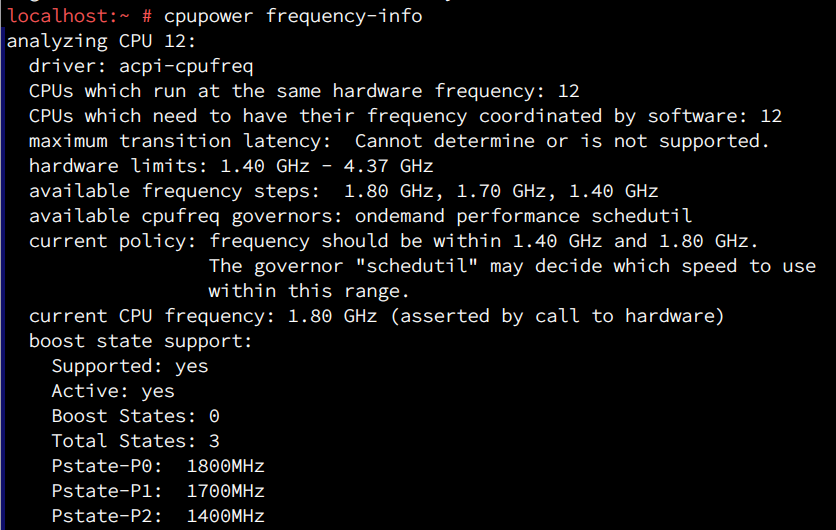
I’d be interested to see the output from cpupower frequency-info
@myswtest I guess I’m hanging around here too much 
The GUI is still absent, as before.
Output from cpupower frequency-info
Is there something like cool’n’quite in the BIOS?
How do I check that? I don’t usually meddle with the BIOS.
@Cat-tail_48 You would need to look at the user manual for your hardware, it’s usually a Fn key or del key you press on boot.
1 Like
I visited the BIOS/UEFI utility and as far as I can see, Cool n’ Quiet is absent in my system. Perhaps replaced by Lenovo Intelligent Cooling as some guides say.
@Cat-tail_48 and that is set to default in the BIOS?
What does powerprofilesctl list show?
I would have though the system would be using amd_pstate https://docs.kernel.org/admin-guide/pm/amd-pstate.html
If you add the following option do things change?
update-bootloader --add-option amd_pstate=active
update-bootloader --config
Reboot and see if amd_pstate is active rather than acpi-cpufreq in the cpupower output.
Exact CPU model might be relevant here…
inxi -Caz
output of powerprofilectl list
balanced:
    PlatformDriver:     placeholder

* power-saver:
    PlatformDriver:     placeholder
It is using acpi-cpufreq
Here, have a look.
localhost:~ # inxi -Caz
CPU:
  Info: model: AMD Ryzen 7 5700U with Radeon Graphics socket: FP6 bits: 64
    type: MT MCP arch: Zen 2 gen: 2 level: v3 note: check built: 2020-22
    process: TSMC n7 (7nm) family: 0x17 (23) model-id: 0x68 (104) stepping: 1
    microcode: 0x8608109
  Topology: cpus: 1x dies: 1 clusters: 1 cores: 8 threads: 16 tpc: 2
    smt: enabled cache: L1: 512 KiB desc: d-8x32 KiB; i-8x32 KiB L2: 4 MiB
    desc: 8x512 KiB L3: 8 MiB desc: 2x4 MiB
  Speed (MHz): avg: 1400 min/max: 1400/4372 boost: enabled
    base/boost: 1800/4350 scaling: driver: acpi-cpufreq governor: schedutil
    volts: 1.2 V ext-clock: 100 MHz cores: 1: 1400 2: 1400 3: 1400 4: 1400
    5: 1400 6: 1400 7: 1400 8: 1400 9: 1400 10: 1400 11: 1400 12: 1400
    13: 1400 14: 1400 15: 1400 16: 1400 bogomips: 57490
  Flags-basic: avx avx2 ht lm nx pae sse sse2 sse3 sse4_1 sse4_2 sse4a
    ssse3 svm
  Vulnerabilities:
  Type: gather_data_sampling status: Not affected
  Type: ghostwrite status: Not affected
  Type: indirect_target_selection status: Not affected
  Type: itlb_multihit status: Not affected
  Type: l1tf status: Not affected
  Type: mds status: Not affected
  Type: meltdown status: Not affected
  Type: mmio_stale_data status: Not affected
  Type: old_microcode status: Not affected
  Type: reg_file_data_sampling status: Not affected
  Type: retbleed mitigation: untrained return thunk; SMT enabled with STIBP
    protection
  Type: spec_rstack_overflow mitigation: Safe RET
  Type: spec_store_bypass mitigation: Speculative Store Bypass disabled via
    prctl
  Type: spectre_v1 mitigation: usercopy/swapgs barriers and __user pointer
    sanitization
  Type: spectre_v2 mitigation: Retpolines; IBPB: conditional; STIBP:
    always-on; RSB filling; PBRSB-eIBRS: Not affected; BHI: Not affected
  Type: srbds status: Not affected
  Type: tsa status: Not affected
  Type: tsx_async_abort status: Not affected
  Type: vmscape mitigation: IBPB before exit to userspace
This bit is telling. Did you run the commands Malcolm suggested previously to enable amd_pstate and reboot?
localhost:~ # update-bootloader --add-option amd_pstate=active
localhost:~ # update-bootloader --config
localhost:~ # update-bootloader --get-option amd_pstate
amd_pstate=active
localhost:~ # cpupower frequency-info
analyzing CPU 9:
  driver: acpi-cpufreq
  CPUs which run at the same hardware frequency: 9
  CPUs which need to have their frequency coordinated by software: 9
  maximum transition latency:  Cannot determine or is not supported.
  hardware limits: 1.40 GHz - 4.37 GHz
  available frequency steps:  1.80 GHz, 1.70 GHz, 1.40 GHz
  available cpufreq governors: ondemand performance schedutil
  current policy: frequency should be within 1.40 GHz and 1.80 GHz.
                  The governor "schedutil" may decide which speed to use
                  within this range.
  current CPU frequency: 1.80 GHz (asserted by call to hardware)
  boost state support:
    Supported: yes
    Active: yes
    Boost States: 0
    Total States: 3
    Pstate-P0:  1800MHz
    Pstate-P1:  1700MHz
    Pstate-P2:  1400MHz
Let me know if I ran any wrong commands
You need to reboot the system and check