I started getting lots of errors while doing a sudo zypper update. See pic below. I took a manual snapshot before the update. Should I rollback to that snapshot? And try the update again?
Or should I do something else?
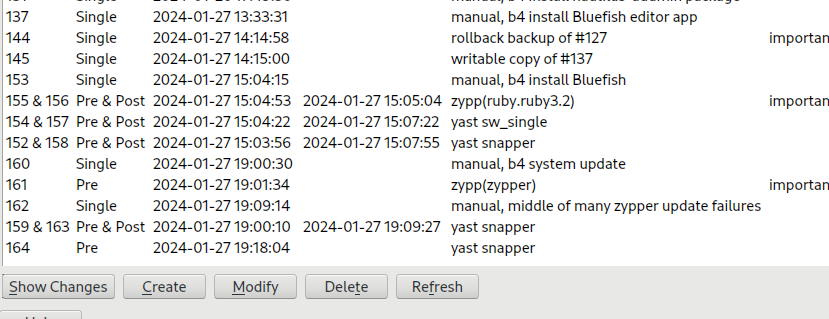
Also see pic below of the snapshots list.
(I’m now finding out why Suse put a lot of effort into making sure snapshots work good on Tumbleweed. )
Interesting. In 4 years of using Ubuntu LTS never once had an error during updates. And I know that a rolling distro like Tumbleweed is a lot different from an Ubuntu LTS distro.
…
…
I am still puzzled why people jump through the hoops to create screenshot and attach it for the pure textual information instead of selecting and pasting text content. Which makes it much more easier to read, search or process with other tools and comment on the specific context. Which is in general far more useful than saying “somewhere on the picture you posted”.
I already posted you the snapper documentation today. Please start reading it…
When booting a snapshot, the parts of the file system included in the snapshot are mounted read-only;
To perform a rollback from a bootable snapshot, do as follows:

Boot the system. In the boot menu choose Bootable snapshots and select the snapshot you want to boot. The list of snapshots is listed by date—the most recent snapshot is listed first.

Log in to the system. Carefully check whether everything works as expected. Note that you cannot write to any directory that is part of the snapshot. Data you write to other directories will not get lost, regardless of what you do next.

Depending on whether you want to perform the rollback or not, choose your next step:

If the system is in a state where you do not want to do a rollback, reboot to boot into the current system state. You can then choose a different snapshot, or start the rescue system.

To perform the rollback, run

sudo snapper rollback

and reboot afterward. On the boot screen, choose the default boot entry to reboot into the reinstated system. A snapshot of the file system status before the rollback is created. The default subvolume for root will be replaced with a fresh read-write snapshot. For details, see Section 3.3.1, “Snapshots after rollback”.

It is useful to add a description for the snapshot with the -d option. For example:

New file system root since rollback on DATE TIME
Which is exactly why I always tell people to post text as text. If you had done it, I could quote this text and show you exactly where it says it. But you posted picture and now I can only say “on the picture you posted”.
On every single blue line on your screenshot at the end (Read-only file system)
error: can't create transaction lock on /usr/lib/sysimage/rpm/.rpm-lock (Read-only file system)
If the system update doesn’t work it is not Tumbleweed’s fault, what ( I assume ) you did is start your computer, on grub select a snapshot to start from instead of starting normally… doing this put your system into a read-only state where you cannot update, this is normal you have not performed a rollback…
Basically every time you do a zypper dup a new snapshot is created, when you want to rollback to a previous version of your system on grub select the option to start from a previous snapshot, select the one you want.
Then your system will start in a read only mode which let you see if everything is good for you, if it does and you want to revert your system to this state then open a terminal and type
sudo snapper rollback
And then reboot and you are good to go…
In your case restart your computer and start normally, without touching Grub to start a snapshot and you should be fine, good to update your system.
Sorry. I’m reading this documentation and it’s too complicated for me. My old brain can no longer parse and understand this level of dense technical writing.
So when I boot from a snapshot (Snapshot A) it’s read only and not active. And then I have to rollback to make Snapshot A active? How do I make Snapshot A active? Active means the snapshot is made permanent. What are the right words for this?
For me, it seems that the rollback will take me back to a state before Snapshot A. That correct?
I need to find a step by step explanation of this process in simpler language.
I just ran the mount command. See terminal output:
advait@localhost:~> mount
/dev/nvme0n1p2 on / type btrfs (rw,relatime,seclabel,ssd,discard=async,space_cache=v2,subvolid=425,subvol=/@/.snapshots/160/snapshot)
advait@localhost:~> mount
/dev/nvme0n1p2 on / type btrfs (rw,relatime,seclabel,ssd,discard=async,space_cache=v2,subvolid=425,subvol=/@/.snapshots/160/snapshot)
So this means that my current system /root is read write? And it’s using the #160 snapshot?
 )
)