I just installed Leap (Gnome) on a laptop which previously had tumbleweed. Either this issue did not occur before the installation or I didn’t notice it because I haven’t used it much this year.
The thing is: Gnome doesn’t recognise any microphones. Pavucontrol tells me the internal mic is disconnected / unavailable.
However, in Audacity I can record audio just fine using sof-hda-dsp (hw:0,7) as a recording device. There’s also sof-hda-dsp (hw:0,6) but it only records mono.
I found out about the microphone, by the way, because there’s a hardware LED to indicate whether the mic is muted, and I can’t unmute it. The orange light indicating it’s muted is always on, pressing it doesn’t change it. I would suspect hardware faults but again, it actually works. I’ve browsed BIOS options, mic is on and, again, it is actually recording stuff. But only Audacity can do it, other apps won’t get it to work (e.g. firefox)
It’s a “Tiger Lake-LP Smart Sound Technology Audio Controller Stereo” card, and it’s the only audio ‘thing’ on this setup. I have run alsa-info but have no idea what to do with it, alsamixer shows good capture levels for the thing it displays as the capture device.
Yea, I realize you’re using GNOME and I am using KDE, but I had a similar experience a loooong time ago. Unfortunately, I can only offer what I see in my KDE Audio Devices tool, and don’t have GNOME DE option.
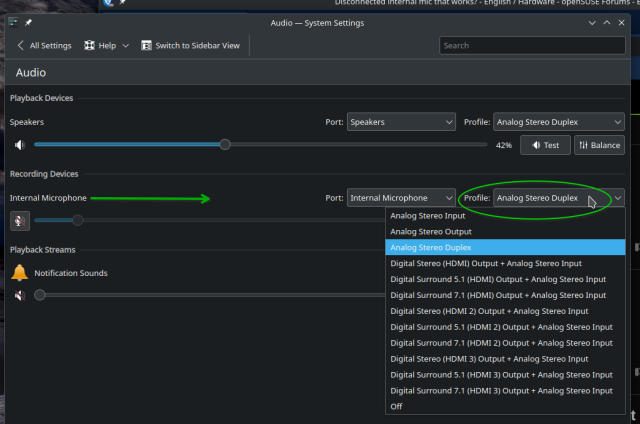
Anyway, check out my screenshot of the KDE audio options - notice that I have a drop-down for the Microphone settings opened up … there are a number of options available.
When I had an issue with “microphone doesn’t work”, it turns out the default choice (Profile) was rwong. Although there are numerous choices, only one or two actually allow the mic to work as expected. Once I changed to a different Profile, it worked instantly.
Can’t promise you have the same outcome, but might see if GNOME offers a similar option
Yeah, I know what you’re talking about; on pavucontrol and similar tools, though, I only have 5 options: 1) stereo output + stereo input 2) stereo output 3) stereo input (this is where it says “disconnected / unavailable”, and it doesn’t work if I choose it, but in any case then I wouldn’t have audio output anyway) 4) Pro Audio (mic doesn’t work with this either) 5) Off.
Unless there are hidden options I’m at a loss here
So, this comment in a reddit post pointed me in the right direction, in a way. The user had a similar issue and created a file at ~/.config/pipewire/pipewire.conf.d/microphone.conf with the following content:
I copied it whole, changing only hw:0,6 to hw:0,7 for my system.
Then I rebooted and both mics appeared, the one that was always supposed to be there and the “Intel Mic” I manually added through the file.
Then I tested the standard option, and it worked, so I backed the additional file up and deleted it. Rebooted again: now the standard option was there, and it worked, so there was no need for the additional “Intel Mic” in the end. The keyboard mute button LED was also off. I pressed it and it worked, muting and unmuting it as expected.
So I don’t know whether the problem was fixed by a reboot (and I had rebooted it before asking online so probably not) but even if adding the file solved it, it didn’t need to stay there permanently to work. So I don’t know what to make of that, but problem solved, I guess.
Thanks @hui and @myswtest for taking the time to help!!!
Audacity works because accesses the ALSA microphone devicehw:0,7 directly. Gnome (and Firefox, PipeWire/PulseAudio clients in general) don’t access the raw ALSA hardware nodes like hw:0,7 or hw:0,6 directly. They rely on the PipeWire/ALSA UCM profiles to expose the relevant capture devices. The real issue is a missing (or outdated) UCM profile for the SOF device, as provided by the alsa-ucm-conf package.
Aahh, that makes sense, thanks for clarifying. I feel like, seeing as detection can always fail, there should be a command to just “update” the UCM profile rather than mess around with config files.
Yes, it was interesting that it stayed working after removing your custom config file, and then survived a reboot. PipeWire initially failed to detect your internal microphone, perhaps due to the microphone mute state at the time, or WirePlumber’s device cache (located in the user’s ~/.local/state/wireplumber/ directory). Speculating a bit here… when you added the temporary api.alsa.pcm.source adapter, you essentially forced PipeWire to create a source node for that ALSA device, which then triggered WirePlumber to re-enumerate the hardware, after which the normal microphone node appeared and began working. Let’s see if it stays that way for you.
That looks very strange and does not match PipeWire documentation. It looks like link formatting applied by the Discourse. To make your example useful to others - please, recheck whether it is correct and if not, ask moderators to edit (you cannot edit it yourself anymore).
I’m sorry, how do I ask a moderator to edit it? Tagging @moderators like this? (before I posted it showed in the preview that I’m not allowed to mention the moderators group though)