Can't set up fax for HP OfficeJet 3830

After reinstalling Tumbleweed recently, I can no longer find a way to install my HP OfficeJet so that the HP Device Manager has fax functionality. To be specific, I:

  1. Install hplip, optionally along with hplip-hpijs and hplip-scan-utils,
  2. Start the HP Device Manager - only the printer is showing, not the fax.
  3. In the Device menu, select Setup Device.
  4. Select connection type USB and click on Next.
  5. Click on Next in the following window - a tiny window appears with the message, " Unable to locate the HPLIP Fax PPD file:

HP-Fax4-hpcups.ppd.gz

Fax setup has been disabled."

Show what you have installed. I don’t have HP hardware, but for reference I have

Loading repository data...
Reading installed packages...

S  | Name                  | Type    | Version    | Arch   | Repository
---+-----------------------+---------+------------+--------+-----------
i+ | hplip                 | package | 3.25.6-3.1 | x86_64 | repo-oss
i  | hplip-base            | package | 3.25.6-3.1 | x86_64 | repo-oss
i  | hplip-common          | package | 3.25.6-3.1 | noarch | repo-oss
i  | hplip-cups            | package | 3.25.6-3.1 | x86_64 | repo-oss
   | hplip-devel           | package | 3.25.6-3.1 | x86_64 | repo-oss
i  | hplip-driver-hpcups   | package | 3.25.6-3.1 | noarch | repo-oss
i  | hplip-ppds-fax        | package | 3.25.6-3.1 | noarch | repo-oss
   | hplip-ppds-hpcups     | package | 3.25.6-3.1 | noarch | repo-oss
i  | hplip-ppds-hpps       | package | 3.25.6-3.1 | noarch | repo-oss
   | hplip-ppds-plugin     | package | 3.25.6-3.1 | noarch | repo-oss
i  | hplip-ppds-postscript | package | 3.25.6-3.1 | noarch | repo-oss
i  | hplip-sane            | package | 3.25.6-3.1 | x86_64 | repo-oss
   | hplip-scan-utils      | package | 3.25.6-3.1 | x86_64 | repo-oss
i  | hplip-utils           | package | 3.25.6-3.1 | x86_64 | repo-oss
i  | libhplip0             | package | 3.25.6-3.1 | x86_64 | repo-oss

Maybe you’re missing the fax package?

1 Like

What command would generate that table?

Use zypper…
zypper se -s hplip

Thanks!

Loading repository data...
Reading installed packages...

S  | Name                  | Type    | Version    | Arch   | Repository
---+-----------------------+---------+------------+--------+----------------------
i+ | hplip                 | package | 3.25.6-3.1 | x86_64 | Main Repository (OSS)
i+ | hplip                 | package | 3.25.6-3.1 | x86_64 | repo-oss
i  | hplip-base            | package | 3.25.6-3.1 | x86_64 | Main Repository (OSS)
i  | hplip-base            | package | 3.25.6-3.1 | x86_64 | repo-oss
i  | hplip-common          | package | 3.25.6-3.1 | noarch | Main Repository (OSS)
i  | hplip-common          | package | 3.25.6-3.1 | noarch | repo-oss
i  | hplip-cups            | package | 3.25.6-3.1 | x86_64 | Main Repository (OSS)
i  | hplip-cups            | package | 3.25.6-3.1 | x86_64 | repo-oss
   | hplip-devel           | package | 3.25.6-3.1 | x86_64 | Main Repository (OSS)
   | hplip-devel           | package | 3.25.6-3.1 | x86_64 | repo-oss
i+ | hplip-driver-hpcups   | package | 3.25.6-3.1 | noarch | Main Repository (OSS)
i+ | hplip-driver-hpcups   | package | 3.25.6-3.1 | noarch | repo-oss
i  | hplip-ppds-fax        | package | 3.25.6-3.1 | noarch | Main Repository (OSS)
i  | hplip-ppds-fax        | package | 3.25.6-3.1 | noarch | repo-oss
   | hplip-ppds-hpcups     | package | 3.25.6-3.1 | noarch | Main Repository (OSS)
   | hplip-ppds-hpcups     | package | 3.25.6-3.1 | noarch | repo-oss
i  | hplip-ppds-hpps       | package | 3.25.6-3.1 | noarch | Main Repository (OSS)
i  | hplip-ppds-hpps       | package | 3.25.6-3.1 | noarch | repo-oss
   | hplip-ppds-plugin     | package | 3.25.6-3.1 | noarch | Main Repository (OSS)
   | hplip-ppds-plugin     | package | 3.25.6-3.1 | noarch | repo-oss
i  | hplip-ppds-postscript | package | 3.25.6-3.1 | noarch | Main Repository (OSS)
i  | hplip-ppds-postscript | package | 3.25.6-3.1 | noarch | repo-oss
i  | hplip-sane            | package | 3.25.6-3.1 | x86_64 | Main Repository (OSS)
i  | hplip-sane            | package | 3.25.6-3.1 | x86_64 | repo-oss
i+ | hplip-scan-utils      | package | 3.25.6-3.1 | x86_64 | Main Repository (OSS)
i+ | hplip-scan-utils      | package | 3.25.6-3.1 | x86_64 | repo-oss
i  | hplip-utils           | package | 3.25.6-3.1 | x86_64 | Main Repository (OSS)
i  | hplip-utils           | package | 3.25.6-3.1 | x86_64 | repo-oss
i  | libhplip0             | package | 3.25.6-3.1 | x86_64 | Main Repository (OSS)
i  | libhplip0             | package | 3.25.6-3.1 | x86_64 | repo-oss

Mod edit: Output presented as preformatted text.

Ok, so the fax package is installed, and you should see the fax PPDs located here:

~> ls -l /usr/share/cups/model/manufacturer-PPDs/hplip-fax/
total 20
-rw-r--r-- 1 root root 971 Nov 23 09:18 HP-Fax2-hpcups.ppd.gz
-rw-r--r-- 1 root root 917 Nov 23 09:18 HP-Fax3-hpcups.ppd.gz
-rw-r--r-- 1 root root 929 Nov 23 09:18 HP-Fax4-hpcups.ppd.gz
-rw-r--r-- 1 root root 872 Nov 23 09:18 HP-Fax-CDM-hpcups.ppd.gz
-rw-r--r-- 1 root root 965 Nov 23 09:18 HP-Fax-hpcups.ppd.gz

I assumei t will be the same on your system, and so the error not due to a missing package. Instead, it may be an issue with the HP Device Manager eg does not look in that location perhaps?

What is reported by hp-info -r? If your HP device is enumerated ok, try manually faxing with something like
hp-sendfax -d usb://HP/OfficeJet_XXXX -n 1 /path/to/testpage.pdf
Substitute the appropriate URI for your HP device, and path to a suitable test document.

You assume correctly that I get the same results. Thanks for establishing that the file is indeed there.

Then it seems I use the wrong command:
hp-info -r
error: Error: ā€˜ConfigParser’ object has no attribute ā€˜readfp’. Retrying with read_file

HP Linux Imaging and Printing System (ver. 3.25.6)
Device Information Utility ver. 5.2

Copyright (c) 2001-18 HP Development Company, LP
This software comes with ABSOLUTELY NO WARRANTY.
This is free software, and you are welcome to distribute it
under certain conditions. See COPYING file for more details.

Query a printer for static model information, dynamic status information, and CUPS printer queue settings.

Usage: hp-info [DEVICE_URI|PRINTER_NAME] [MODE] [OPTIONS]

[PRINTER|DEVICE-URI]
To specify a -d or --device=
device-URI:
To specify a CUPS -p or --printer=
printer:

[MODE]
Run in graphical -u or --gui (Default)
UI mode:
Run in interactive -i or --interactive
mode:

[OPTIONS]
Use Qt5: --qt5 (Default)
Set the logging -l or --logging=
level:
: none, info*, error, warn, debug (*default)
Run in debug mode: -g (same as option: -ldebug)
This help -h or --help
information:

Device ID mode: --id (prints device ID only and exits.) (interactive
(-i) mode only.)
Allow device URIs -x (interactive (-i) mode only.)
of uninstalled
printers:

See Also:
hp-toolbox

error: option -r not recognized
barry@localhost:~> hp-sendfax -d usb://HP/OfficeJet_3830 -n 1 ~/Downloads/guidance-indoor-air-quality-professionals
error: Error: ā€˜ConfigParser’ object has no attribute ā€˜readfp’. Retrying with read_file

HP Linux Imaging and Printing System (ver. 3.25.6)
PC Sendfax Utility ver. 9.0

Copyright (c) 2001-18 HP Development Company, LP
This software comes with ABSOLUTELY NO WARRANTY.
This is free software, and you are welcome to distribute it
under certain conditions. See COPYING file for more details.

error: No device found that support this feature.

Was the printer connected and turned on?

sudo lpinfo -v

Yes, the printer was connected and turned on. In fact, your latest command works much better:

sudo lpinfo -v
[sudo] password for root:
network beh
network http
direct hp:/usb/OfficeJet_3830_series?serial=CN8965Q4JK06VZ
network ipps
network ipp
network https
direct usb://HP/OfficeJet%203830%20series?serial=CN8965Q4JK06VZ&interface=1
network socket
network lpd
direct hpfax:/usb/OfficeJet_3830_series?serial=CN8965Q4JK06VZ
network smb

I altered your earlier hp-sendfax suggestion and tried this:

hp-sendfax -d hpfax:/usb/OfficeJet_3830_series?serial=CN8965Q4JK06VZ -n 1 ~/Downloads/guidance-indoor-air-quality-professionals
error: Error: ā€˜ConfigParser’ object has no attribute ā€˜readfp’. Retrying with read_file

HP Linux Imaging and Printing System (ver. 3.25.6)
PC Sendfax Utility ver. 9.0

Copyright (c) 2001-18 HP Development Company, LP
This software comes with ABSOLUTELY NO WARRANTY.
This is free software, and you are welcome to distribute it
under certain conditions. See COPYING file for more details.

error: No device found that support this feature.
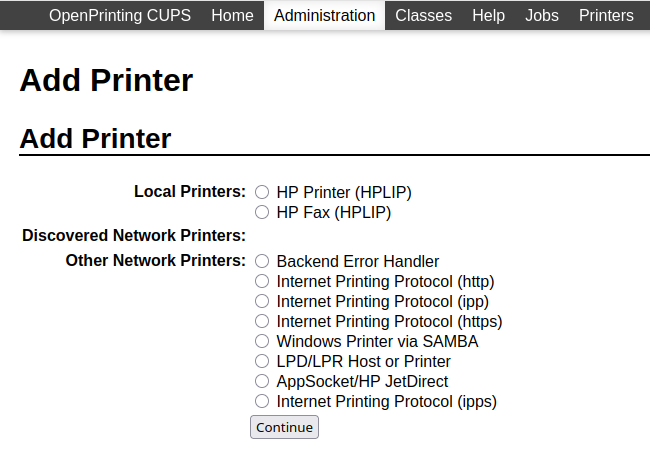
Upon investigation, https://developers.hp.com/hp-linux-imaging-and-printing/howtos/faxing#:~:text=1.,associated%20with%20the%20fax%20device. seems to reveal that hp-sendfax is expecting there to already be working fax functionality in the HP Device Manager GUI. So, your suggestion of ā€œsomething like hp-sendfaxā€¦ā€ may need a different something.

The previous time I set up Tumbleweed on this computer, setting up the printer was also nontrivial, though different. So there seems to be room for improvement here, if not reason to file a bug report or two. I’m not saying that to complain; I think it’s fantastic that I’m getting such a capable distro for free. But since the fax I want to send is time sensitive, I’ll be creating a bootable USB for another distro, in case the problem is with Tumbleweed, rather than Linux.

Thanks again for your help. I’m still very interested in finding out how to make this work with Tumbleweed, even if the answer turns out to be to file a bug report.

@Barry821
Please, to make the pieces of computer code in your posts better consumable by technical oriented people:

Sorry about that. I will do this in the future. However, I’m not seeing a way to edit my previous comments in order to format them.

Correct, you can’t anymore. But we hope for the future :wink:

I was able to send my fax by booting from a Manjaro i3 live USB, though I ran into a problem when I tried a Linux Mint live USB. I reported the problem at https://bugzilla.opensuse.org/show_bug.cgi?id=1257529.

It might be useful to compare version differences: hp-info

In a working system sudo lpinfo -v | grep -i fax should return something like
direct hpfax:/usb/OfficeJet_3830_series?serial=...
If that line is missing, the fax device is invisible to CUPS. You could add the comparative results to your bug report.

Returning to your opening post and going over this topic again, I noted the above despite the fax PPDs being available in /usr/share/cups/model/manufacturer-PPDs/hplip-fax/, while the HP utility expects them to be located in /usr/share/cups/model/HP/ or /usr/share/ppd/HP/. See
https://h30434.www3.hp.com/t5/Printer-Setup-Software-Drivers/ppd-file-for-HP-LaserJet-Pro-4001-A86F60/td-p/9431204
This does warrant a bug report, but in the meantime you can work around it by configuring it using the CUPS web interface: http://localhost:631/admin/

Login, and ā€œAdd Printerā€ā€¦


Under Local Printers / Devices, choose:

HP OfficeJet 3830 (hpfax:/usb/OfficeJet_3830_series?serial=CN8965Q4JK06VZ)

If there’s more than one device, pick the one with hpfax: in the URI. Click ā€œContinueā€. Follow the prompts given, including browsing for a PPD file located in /usr/share/cups/model/manufacturer-PPDs/. There are 4 to choose from but perhaps try HP-Fax-hpcups.ppd.gz first (fairly generic). Then ā€œAdd Printerā€. Once that’s done it should appear as another CUPs device you can choose from.

Thank you very much! Below is how it worked for me, with an added instruction helpful for someone like me who hadn’t done something like this before. Though I’m choosing this comment as the solution, all credit goes to you, deano_ferrari.

  1. As you advised, I used the CUPS web interface, http://localhost:631/admin/.

  2. When logging in, the user needed is root.

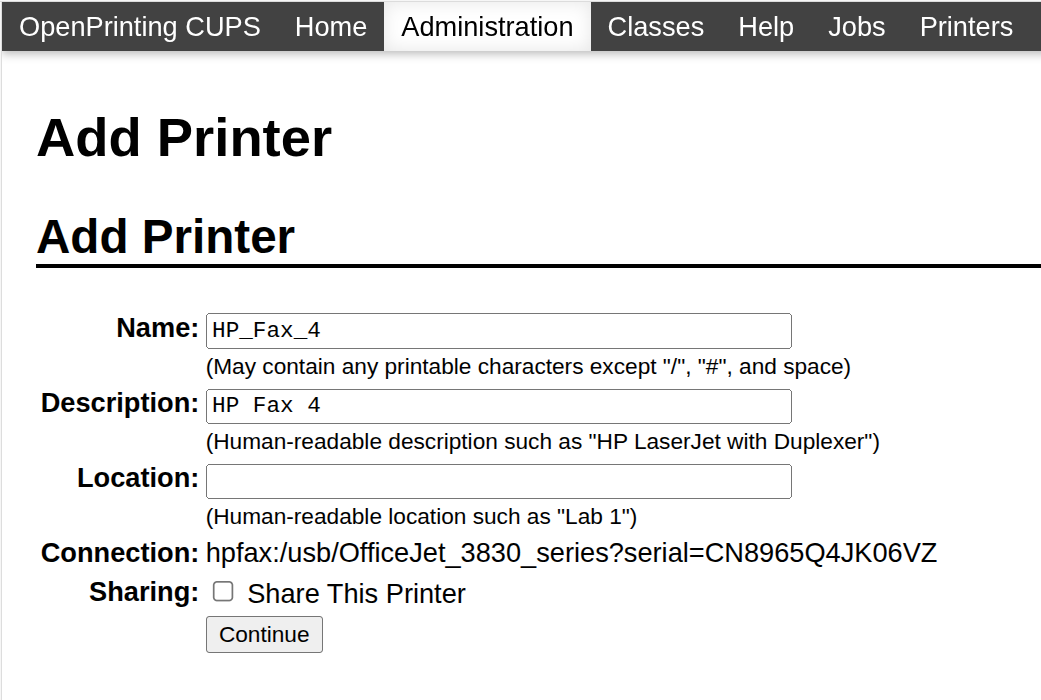
  3. My screen for adding a printer looked like this:

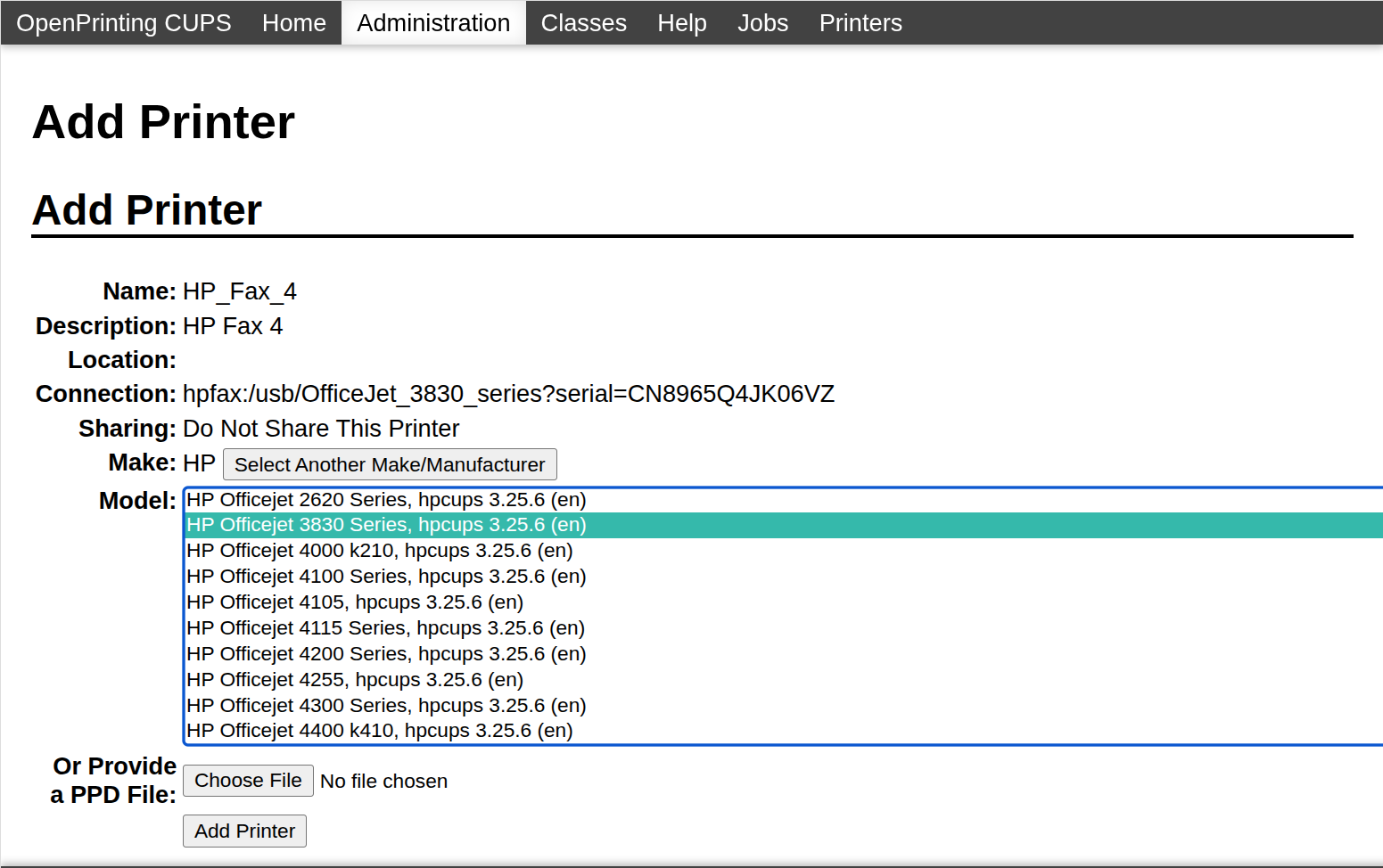
  1. The first time I clicked on ā€œContinueā€, it timed out, but the second time worked, producing this screen:

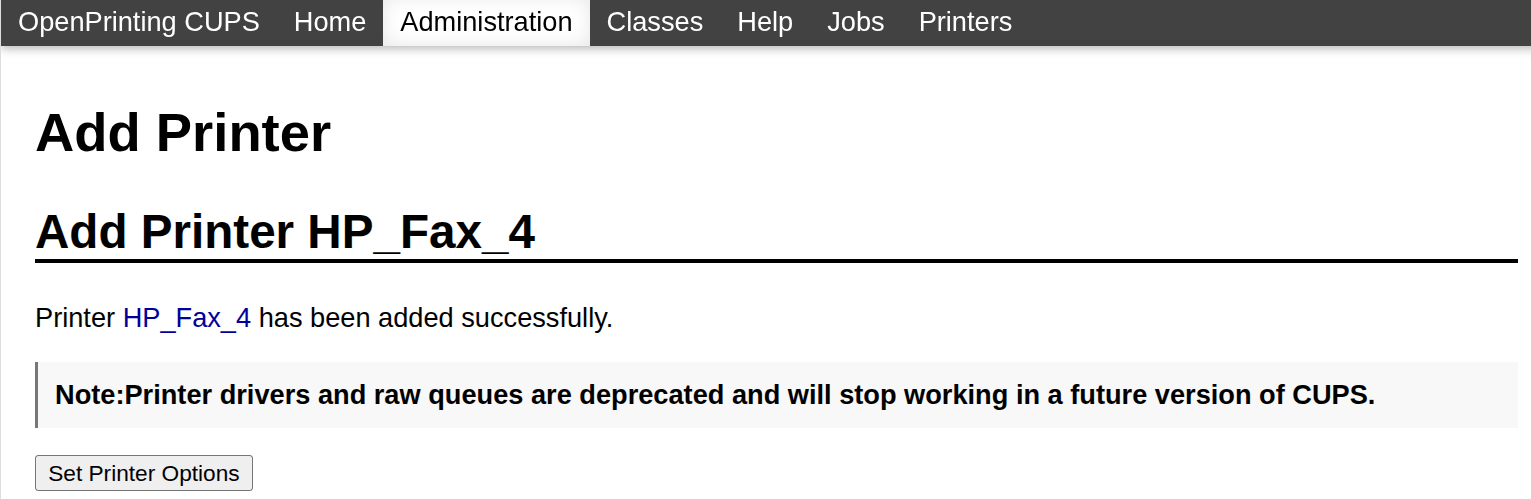
  1. As indicated by the above image, I selected the model of my printer, rather than browsing for a PPD file, and clicked on ā€œAdd Printerā€, resulting in the following screen:

  1. I had previously installed HPLIP. When I opened the HP Device Manager, I saw that faxing was now indeed an option, as though I had set up the printer normally.

Glad to have been of guidance.

1 Like

This topic was automatically closed 7 days after the last reply. New replies are no longer allowed.