-u stays for --clean-deps, not --unneeded which zypper subcommand remove does not even understand.
1 Like
That is correct. My mistake.
-u, –clean-deps
Automatically remove dependencies which become unneeded after removal of requested packages.
Pencil? Paper? What repository is that in?
I now see the Myrlyn flag for removing unneeded. I will use it in future. I’m slowly moving away from yast!
English is not my first language, but isn’t that called “Stationery store”?
I suspect you’re being funny.
Personally, I’d never use a pencil and paper to write changes.
The smarter approach is what I do. I have a perpetual text file that I update every time I run a “zypper up” on my machines.
When I run a “zypper up” … if there are files to update, I copy-n-paste the output from the windowed terminal (Konsole on KDE) and append it to a file “update.txt”. That way, If something goes amiss, I can refer back to that moment in time.
Here’s a sample copied out of the ‘update.txt’ for for Oct 10 (on laptop):
[ snipped previous text]

==== 1030
Loading repository data...
Reading installed packages...
Force resolution: No

The following 7 items are locked and will not be changed by any action:
 Available:
  geoclue2 gtk3-immodule-amharic gtk3-immodule-inuktitut gtk3-immodule-thai gtk3-immodule-tigrigna gtk3-immodule-vietnamese kcm_tablet

The following 2 packages are going to be upgraded:
  brave-browser-beta
    1.85.90-1 -> 1.85.92-1       x86_64  Brave Browser - Beta
    Brave Software, Inc.
  xwayland
    24.1.1-150600.5.15.1 -> 24.1.1-150600.5.18.1  x86_64  Update repository with updates from SUSE Linux Enterprise 15
    SUSE LLC <https://www.suse.com/>

2 packages to upgrade.
Package download size:   123.2 MiB
Package install size change:
              |     405.6 MiB  required by packages that will be installed
   -10.5 KiB  |  -  405.6 MiB  released by packages that will be removed

Backend:  classic_rpmtrans
Continue?

==== 1031
[ snipped newer text ]
I’ve been relying on Myrlyn lately, rather than the terminal. Can we get this out of Myrlyn?
1 Like
I have no objections against automising the pencil/paper procedure. Of course what I like to stress is how useful it is to take notes about what one is doing. And just throwing a few notes on a piece of paper during testing is easy enough. But doing it on a technical different way to one’s liking is OK of course.
2 Likes
But isn’t that more or less what you get in /var/log/zypp/history mentioned by @Sauerland? Taking notes - in whatever way - is definitely useful! A few words on paper - or in a text file - make it very easy to follow up / trace back on immediate steps. I also take notes on changes / configurations I make on hardware or software etc. and keep them for later use or reference. A perpetual textfile in this case seems a bit redundant. Of course it can’t do any harm and is easier to access as user.
That’s a good decision. 
Also have a look at “View” → “Package Classification” and “Unneeded” or “Orphaned”.
See also issue #71 for a discussion what exactly “orphaned” means.
Openshot is good but it choked on me sometimes.
Simplest, cleanest I’ve ever used… shotcut.
It’s available as an appimage which is superb.
Just copy the appimage to a local folder and execute it from there. No “installation” required. Just too simple.
shotcut seems to look/feel a lot like openshot but I’ve never had a hiccup with it.
Running a Leap 15.6 system with an 8core processor / 16G ram and it processes videos wonderfully and importantly simply.
Cut clips, add clips, export file, … very easy.
1 Like
It’s available also in tumbleweed
I’m trying shotcut but can’t tell if I can time the appearance of each jpeg. It doesn’t look like a video, as I hoped. But, it is what it is!
I still like the openshot
@Prexy if your need is just trimming video files, you can use vidcutter or video trimmer which do exactly that, and not much else.
The flatpak versions include all dependencies. Quite straightforward.
Not sure what to say. Clipping the last minute with kde is incredibly easy. incredibly.
Drag the video into kdenlive’s project bin.
Drag the video from there down into kdenlive’s timeline.
Put your mouse over end of video in timeline, left click to select end of the video, and drag to the left to reduce the video length. For every second you dragleft there will be one second chopped out.
Then after you have shortened the video (above takes what ? only a handful of seconds to do) then render the video.
This is incredibly easy. … Is there something wrong, perhaps, with your kdenlive install?
Here’s another option, if you have VLC installed. I use it all the time to trim audio and video files - very simple. If you don’t have VLC installed and don’t want to, simply ignore the following 
I mostly use this to trim audio files down to a minute or less, that I will then play “loop continuously” for soothing background music.
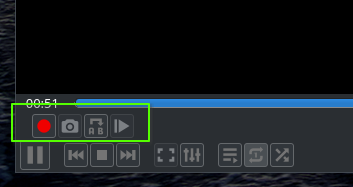
- On the main menu, open the View menu, then click a checkmark for [
 ] Advanced Controls - it will show up as the toolbar circled in green in screenshot.
 - Open the video | audio file.
- Set the start point, then click the red circle “Record” button (far left) to play the video / record simultaneously.
- When the video reaches the new end point, click the “Record” button to stop.
The “new” video | audio will be auto-magically saved as a new file.
There’s also a “frame-by-frame” button (far right) on the Advanced toolbar for more granular control.
One old guy to another: this is very easy to do:
Place the video on the timeline
Grab the end of the video with your mouse and drag the mouse to the left.
The video will now be shortened.
Another way is to place the cursor on the exact time frame where you want to stop the video
Change the cursor from a pointing arrow into scissors.
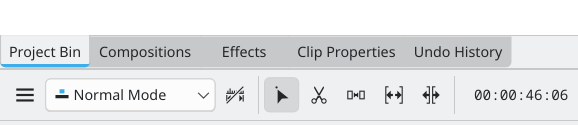
Click on the selected time frame.
Change the cursor back to the arrow
Click on the right part of the video and type the delete key
The right part is now gone.
Have fun.
This topic was automatically closed 30 days after the last reply. New replies are no longer allowed.