On openSUSE Leap 16.0 with KDE I have set up two printers, with “Drucker kls” being the default printer. When I want to print from any application (for example ‘kate’, but it’s the same with Gwenview, LibreOffice, Firefox, Thunderbird…) the print dialog offers me “Color_LaserJet_Pro_M478f-9f” (which is what I defined as “Farbdrucker”) instead of the default “Drucker kls” (which doesn’t even show up as such). The “M2020_Series” is the model of my “Drucker kls”, but why isn’t it selected by default? And why are there three printers in the “Name:” drop down menu, and not the two I explicitly defined?
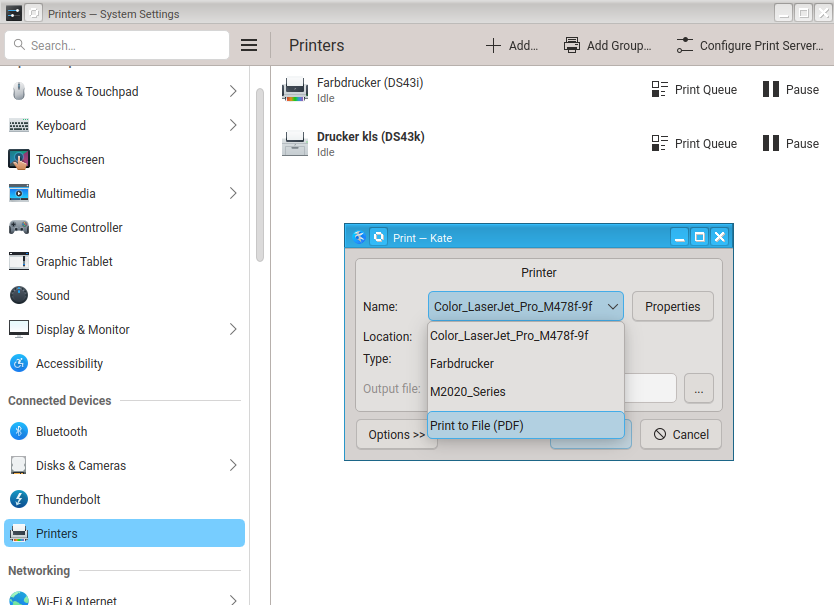
This reads like KDE’s print dialog is showing both manually configured printers and automatically discovered (Avahi) printers perhaps?
What does the following command report?
sudo lpstat -v
root@eagle:/root > lpstat -v
device for Color_LaserJet_Pro_M478f-9f: ipp://HP040E3CE9AA97.local:631/ipp/print
device for M2020_Series: usb://Samsung/M2020%20Series?serial=ZF47B8GFCC00BZJ
OK, so both are manually configured printers (ie defined in /etc/cups/printers.conf)?
sudo grep 'Printer' /etc/cups/printers.conf
root@eagle:/root > grep 'Printer' /etc/cups/printers.conf
# Printer configuration file for CUPS v2.4.11
NextPrinterId 3
<Printer Color_LaserJet_Pro_M478f-9f>
PrinterId 2
MakeModel Printer - IPP Everywhere
</Printer>
<DefaultPrinter M2020_Series>
PrinterId 1
</DefaultPrinter>
FWIW, on my laptop I currently have two printers defined…
~> lpstat -d -e
system default destination: Brother_DCP-7055
Brother_DCP-7055
Ricoh
…and if I change to make the Ricoh printer default, and examine the print dialog box with Kate for example, it is respected immediately, so I’m not sure why the difference in your situation?
I assume the additional HP printer entry is listed due to Avahi discovery?
sudo lpinfo -v
or
driverless
Speculating if you may have set the default printer as a user. If so then ~/.cups/lpoptions will exist…
ls -l ~/.cups/lpoptions
and lpstat -d as user should reflect that, while the system-wide setting sudo lpstat -d may be different. The latter is reflected in /etc/cups/printers.conf.
Any per-user setting will override the system-wide setting. Maybe that is what is happening here?
Good catch!
There was a ~/.cups/lpoptions and it contained
Default Drucker_Klaus
which was a name I used in a previous installation. After removing this file (and newly logging in) I get
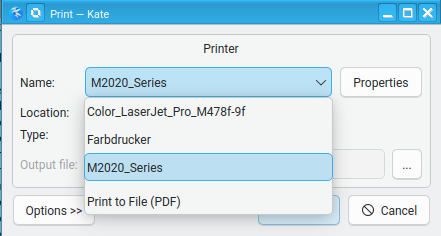
So the default printer is now selected as expected. Thanks!
Now there’s still the question why there are three entries in the drop down menu, and why none of them shows the name I chose in the printer definition. I explicitly changed the name “Farbdrucker” to “Mein Farbdrucker” to see if it picks that up (also restarted cups), but the menu didn’t change.
For that you need to see what is being auto discovered (via Avahi) as already mentioned. It can be very inhibited in f desired.
Here’s what I get:
root@eagle:/home/kls > lpinfo -v
network beh
file cups-brf:/
serial serial:/dev/ttyS0?baud=115200
network ipps
network https
network ipp
network socket
network http
network smb
network lpd
network dnssd://Farbdrucker._ipp._tcp.local/?uuid=5e7fdb4e-a409-50c2-84f5-20f3f83f00b7
network dnssd://Farbdrucker._printer._tcp.local/?uuid=5e7fdb4e-a409-50c2-84f5-20f3f83f00b7
network ipps://Farbdrucker._ipps._tcp.local/
root@eagle:/home/kls > driverless
ipps://Farbdrucker._ipps._tcp.local/
How can I make the print menu offer only the printers I have explicitly defined in “System Settings/Connected Devices/Printers”, and have them show up with the names defined in their respective “Description:” fields?
One way would just be to adjust the firewall so that mdns traffic is blocked.
It might be sufficient to change BrowseLocalProtocols from dnssd to none. Then restart cups.service.
From man cupsd.conf
       BrowseLocalProtocols dnssd

       BrowseLocalProtocols none
            Specifies which protocols to use for local printer sharing.  The default is "dnssd" on systems that support Bonjour and "none" otherwise.
There is no BrowseLocalProtocols in my cupsd.conf. However, there is a cups-browsed.conf that contains BrowseLocalProtocols and BrowseRemoteProtocols. I tried setting both of them to none and restarted cups, but to no avail. The lack of effect may have to do with the fact that cups-browsed.service isn’t running (and apparently not needed)
I just saw that there is a cupsd.conf.O, which is apparently the version from before I configured my printers. That file does contain BrowseLocalProtocols dnssd. I added it to cupsd.conf and set it to none, but nothing changed.
Correct, cups-browsed is not relevant here.
After making the change to cupsd.conf, did you then restart CUPS?
sudo systemctl restart cups
Maybe flush avahi-daemon by restarting it as well with
sudo systemctl restart avahi-daemon
Then check
sudo lpinfo -v
to make sure no dnssd:// or _ipp._tcp.local printers found.
The most blunt instrument is to block mdns traffic via Firewalld (if active).
Here’s what I did:
root@eagle:/etc/cups > vi cupsd.conf
root@eagle:/etc/cups > grep Browse cupsd.conf
BrowseLocalProtocols none
BrowseRemoteProtocols none
root@eagle:/etc/cups > systemctl restart cups
root@eagle:/etc/cups > systemctl restart avahi-daemon
root@eagle:/etc/cups > lpinfo -v
network beh
file cups-brf:/
serial serial:/dev/ttyS0?baud=115200
network ipps
network socket
network https
network http
network lpd
network ipp
network smb
network dnssd://Farbdrucker._ipp._tcp.local/?uuid=5e7fdb4e-a409-50c2-84f5-20f3f83f00b7
network dnssd://Farbdrucker._printer._tcp.local/?uuid=5e7fdb4e-a409-50c2-84f5-20f3f83f00b7
network ipps://Farbdrucker._ipps._tcp.local/
No change in the printer selection menu.
Maybe let’s ignore the problem with the remote “Farbdrucker” and “Color_LaserJet…” for the moment and find out why my local USB printer shows up as “M2020_Series” and not as “Drucker kls”. The “System Settings/Printers” menu lists it correctly, and I would expect the same name to appear in all applications’ Print menus.
While experimenting in that area I found out the following:
- Apparently there is no way to delete a printer from the “System Settings/Printers” menu. You have to stop cups, delete the printer definition from printers.conf and start cups.
- When adding a new printer, the root password is requested twice.
- In the “Add Printer” dialog you can enter a queue name and a description:
- When you open that printer definition again later, the queue name is not shown any more:
- On a side note: when you edit any of the strings in this dialog, the “Apply” button only becomes selectable after the focus is changed to one of the other input fields.
- Now for the strange part: The “Printers” list shows the string given in the “Description” field, and so does the “Print Queue” dialog. But the “Printer” dialog of an application (e.g. Kate) shows the queue name!
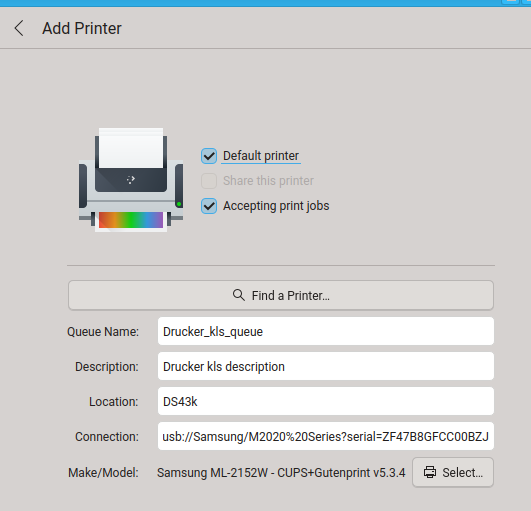
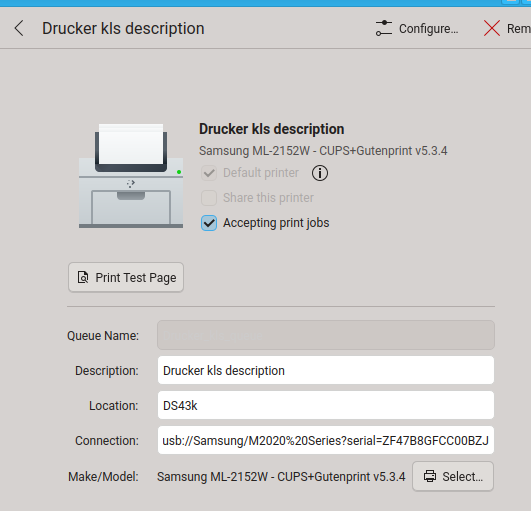
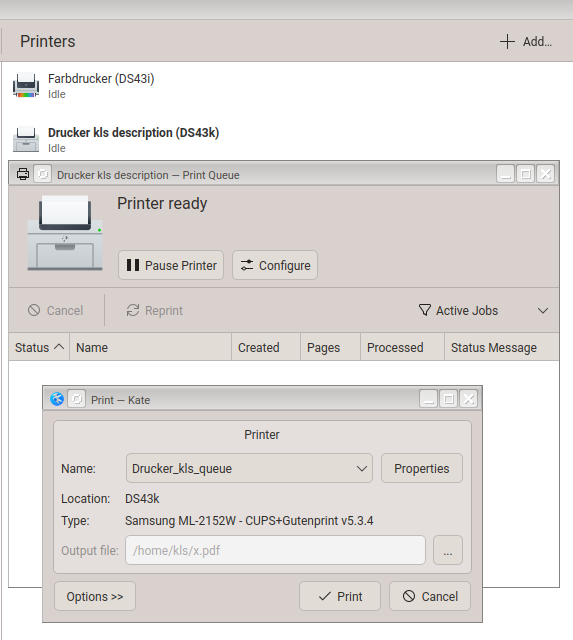
As a user I would expect the “Printer” menu of applications to display the descriptions (as shown in the “Printers” list, and it might be a good idea to display the queue name somewhere in the “Print Queue” dialog.
For the moment I can set the queue name to something descriptive, but unfortunately that doesn’t accept blanks, and also doesn’t display the Location. I hope this can be fixed in a future version.
Am I the only one who has run into these idiosynchrasies?
How do others set up their printers?
You can block mdns to inhibt Avahi discovery (as I already mentioned several times now).
I generally only ever use the CUPS web interface for managing printers.
The CUPS interface apparently uses the “Queue Name” to identify printers, while the “System Settings/Printers” menu uses the “Description” (and doesn’t even show the Queue Name after initial setup). From the user’s point of view this is inconsistent and irritating. It would be better if applications presented the user with the Description instead of the Queue Name.
I suggest taking that discussion upstream…
Not an openSUSE-specific issue.
1 Like