Using XFCE.
Could someone please recommend software to connect to my Nokia G22 and transfer data. I have tried Nokia PC Suite, gnokii, KDE-connect, and wammu, all without success?
Thanks in advance.
I don’t use “software”. I simply use a USB cable and connect it from the smartphone (Samsung S series Ultra) to the laptop.
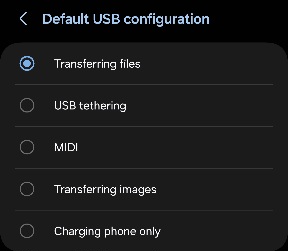
On the smartphone, I go to the Developer Options section of the main Settings , then to USB Configuration, and choose the appropriate option.
Then after connecting, I use Dolphin to transfer files.
Unfortunately there is no Developer Options section of the main Settings. But then Nokia and Samsung phones are not the same.
This really isn’t openSUSE specific
You’re better off going to a nokia forum and ask there.
Yep … it’s hidden by default. For Samsung , to enable Developer options on a Samsung phone:
Open Settings, then tap About phone, then tap Software information.
then tap the Build Number entry seven times.
Now , Dev Options will show up in Settings … it’s probably a “safety feature” 
Even though the procedure is found on the 'Net
Eh, you are talking about an Android phone. Do we have confirmation that the Nokia actually is one?
Sorry, it is. Android 12 that is.
Did you try describing your issue to an AI chat bot to see if they had any suggestions (and I do recommend caution if you adopt that approach). I pulled some of the below from an AI chatbot and I copied and pasted (albeit not without doing a quick check of it first. I don’t recommend the command line options without further dialog on this thread).
I think the apps you tried (other than KDE connect) were not the best. I have used KDE connect with my Samsung phone and it works.
- Nokia PC Suite is for older Nokia phones (pre-Android) and won’t work with a Nokia G22.
- Gnokii and Wammu are primarily for older “dumb” phones or specific AT modem commands, not modern Android MTP connections.
- KDE Connect is a fantastic tool, but it’s wireless and relies on network connectivity, and can sometimes have its own setup quirks. Its failure might indicate a network or firewall issue rather than a USB one.
Some detail from an AI Bot – where I note I have not had to do any of this myself. Typically kdeconnect just worked for me:
Connecting Your Nokia G22 to GNU/Linux (Desktop-Agnostic)
Modern Android phones, including the Nokia G22, primarily use the Media Transfer Protocol (MTP) for file transfer. This is the standard way your Linux system will interact with your phone’s storage when connected via USB.
1. Essential Phone Settings (Nokia G22)
This is the most crucial step on the phone itself:
- Connect via USB: Use a data-capable USB cable (not just a charging cable) to connect your Nokia G22 to your Linux computer.
- Unlock Your Phone: Ensure your phone’s screen is unlocked. For security, most Android phones won’t allow data access while locked.
- Select USB Mode: After connecting, pull down the notification shade on your phone. You should see a notification related to the USB connection (e.g., “Charging this device via USB”). Tap on this notification.
- Choose “File transfer” (MTP): From the options that appear (they might vary slightly, but look for these):
- “File transfer”
- “Media Transfer Protocol (MTP)”
- Avoid “Charging only,” “PTP” (Photo Transfer Protocol - usually only shows pictures), or “MIDI.”
Once “File transfer” is selected, your phone’s storage should become accessible to your Linux system.
2. Linux System Requirements & Troubleshooting (Core Components)
Most modern GNU/Linux distributions have the necessary components for MTP support installed by default. These are not tied to a specific desktop environment:
- GVFS (GNOME Virtual File System): This is the underlying framework that allows file managers (like Thunar in XFCE, Nautilus in GNOME, Dolphin in KDE, PCManFM-QT in LXQt, etc.) to handle MTP devices. Specifically, the
gvfs-backendspackage (or similar, depending on your distribution) provides MTP support.- Check/Install
gvfs-backends: If you’re having trouble, verify this package is installed. Open a terminal and use your distribution’s package manager:- OpenSUSE:
sudo zypper install gvfs-backends
- OpenSUSE:
- Check/Install
libmtp: This is a library that provides the core MTP functionality.gvfs-backendsusually depends on it, but ensuring it’s up-to-date can sometimes help.mtp-tools(Optional but useful for debugging): This package provides command-line utilities for MTP.- Install
mtp-tools:sudo apt install mtp-tools(or equivalent for your distro) - Test with
mtp-detect: After installing, connect your phone and runmtp-detectin the terminal. This will show if your system is detecting the MTP device and its properties. If it shows an error here, the problem is at a lower level than your file manager.
- Install
3. Accessing Files
Once the MTP mode is selected on your phone and the necessary backend packages are installed on your Linux system:
- File Manager: Open your preferred file manager (e.g., Files, Dolphin, Thunar, PCManFM, Caja). Your Nokia G22 should appear as a device or “MTP device” in the sidebar or under “Devices.” Clicking on it should allow you to browse its internal storage and any SD card.
4. Advanced Troubleshooting & Alternatives
If basic MTP isn’t working, consider these:
- Try a different USB cable/port: Not all USB cables are data cables, and sometimes a port can be faulty.
- Restart both phone and computer: A fresh start can often resolve transient issues.
- Check
lsusb: In a terminal, runlsusb. This lists all connected USB devices. You should see an entry for your Nokia phone. If it doesn’t appear here, the hardware connection itself is the issue. - USB Debugging: While not directly for MTP, sometimes disabling USB Debugging (if enabled in Developer Options on your phone) can resolve MTP issues, or conversely, enabling it and then revoking USB debugging authorizations can sometimes reset the connection.
- Firewall: Although less common for direct USB connections, ensure no strict firewall rules are blocking MTP traffic if you’re using more advanced network-based methods (like KDE Connect, which you mentioned didn’t work).
jmtpfs(Command-line mounting): If graphical file managers fail, you can try mounting manually.- Install
jmtpfs:sudo apt install jmtpfs(or your distro’s equivalent). - Create a mount point:
mkdir ~/AndroidPhone - Mount the device:
jmtpfs ~/AndroidPhone - Browse:
ls ~/AndroidPhone - Unmount:
fusermount -u ~/AndroidPhone - Note:
jmtpfsmight requireuser_allow_otherto be uncommented in/etc/fuse.conffor non-root users to mount.
- Install
- Wireless Alternatives (Since USB MTP is failing):
- LocalSend: This is an excellent open-source, cross-platform tool for wireless file transfer over your local network. It requires an app on your phone and an application on your Linux desktop. It’s often more reliable and faster than MTP for larger transfers.
- Syncthing: For continuous, automatic syncing of folders between your phone and computer, Syncthing is a powerful, decentralized option. It requires a bit more setup but is very robust.
- FTP/SFTP Server on Phone: Install an FTP or SFTP server app on your Nokia G22 (e.g., “FTP Server” or “Termux” with
openssh). Then, from your Linux file manager, you can connect to your phone usingftp://<phone_ip_address>:<port>orsftp://<phone_ip_address>:<port>. This requires your phone and computer to be on the same Wi-Fi network. - AirDroid / Pushbullet (Cloud-based): These services offer file transfer and notification syncing, often through a web interface. They rely on cloud servers and may have limitations on file size or features for free tiers.
The user’s experience with KDE Connect failing suggests a potential network or underlying system issue that might also affect wireless alternatives. However, for direct USB connection, the focus should remain on proper MTP setup and the core gvfs-backends components. If mtp-detect shows issues, the problem is usually at the system/kernel level rather than the file manager.
= = = =
Most (not all) of that is a copy and paste from an AI chatbot. Which means (1) it could be bad advice (as AI bots often get these things wrong) or (2) it could have a ‘hidden gem of advice’ that you were missing.
Frankly, I would never do anything following an AI bot’s advice, without confirmation from someone else,or from 2 other AI bots.
Likely thou, you will get excellent advice on our forum.
Best wishes.
2 Likes
Many thanks for all the information you sent. It’s going to take me a while to work through it but I have been already struggling for quite some time.
Yea, bored.
I did a Google search for:
nokia g22 developer options
Sure enough , there’s a few videos that show how , plus websites describing it … but it’s exactly how it is described in a previous Answer #5 above.
Then read the first answer that shows a screenshot with the “Transferring” option.
It’s how I copy files from phone. The whole process takes under 2 minutes and then you can copy. Way less time than sifting thru AI output 
Okay, I was bored too.
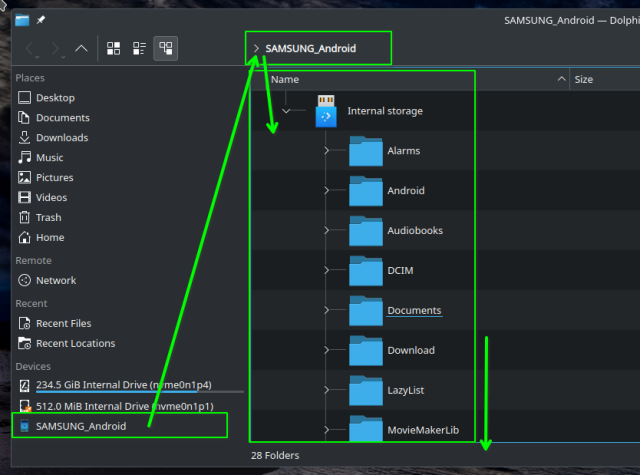
It took me longer to find my USB-C to USB-C cable than to connect, auto-mount, and display in Dolphin (KDE file manager)
Placed my Samsung S Ultra (Android phone) next to my Dell laptop (Leap 1.5.6).
- Plugged one end of the USB-C cable into the phone.
- Plugged the other end of the USB-C cable into the laptop.
- On the laptop, a pop-up message appeared, offering to mount the phone and open in file manager. I answered yes.
- And there you see it - instantly mounted and the phone’s file system in plain view in Dolphin.
That’s one way I perform backups of the phone … or to download photos or documents I’ve captured using the phone.
(and yes, it originally took me about 60 seconds to enable “Developer Option” and to turn on “Transfer files”. Keep in mind, Android phones are based on Linux … so navigating an Android’s filesystem is no different than an openSUSE filesystem).
Notice in Dolphin, the phone is listed along with the laptop’s NVME drives / partitions, so to Linux, it’s just another Linux storage device.
.
This topic was automatically closed 30 days after the last reply. New replies are no longer allowed.